Showing posts with label PDF. Show all posts

How to Convert PDF to JPEG Image in PHP

On 5/04/2018 Be the first to comment!

Hi! Today let's see how to convert pdf to jpeg in php using imagick. PHP offers some good native extensions for image processing. Imagick is one of those extensions with which we can easily create JPEG images from pdf without the need for third-party tools.

The library does not need installation since it comes built-in with PHP. You just have to instantiate the class and use it. Plus it provides several customization options to create images. I suggest you to refer the official documentation for the complete list of functions.

php convert pdf to jpeg

PHP - Convert PDF File to JPEG:

Imagick is the native php extension to create and process images using the ImageMagick API. To covert the pdf into jpeg with imagick, you must first read the image from the pdf file and then write it into an image. The following example converts all the pages in a pdf file into jpeg images.

<?php
$imagick = new Imagick();
$imagick->readImage('mypdf.pdf');
$imagick->writeImages('myimage.jpg', false);
?>

In the above snippet, we used two functions,

  • Function readImage(), to read the image from the given file.
  • Function writeImages(), to write an image or image sequence to the file. We have set the second parameter as 'false', which makes the pages to be split into a separate image file. For example, if there are 3 pages in the pdf, they will be saved as myimage-0.jpg, myimage-1.jpg and myimage-2.jpg.

For Better Quality:

To obtain better image quality, use the setResolution() method before reading the image.

$imagick->setResolution(150, 150);

Converting Specific Page to JPEG:

In case you want to convert only a particular page in the pdf file, use the page number after the file name like this, mypdf.pdf[0]. Please remember, the pages start from zero. It will just convert the first page of the pdf into image. Here's the example.

<?php
$imagick = new Imagick();
$imagick->readImage('mypdf.pdf[0]');
$imagick->writeImages('page_one.jpg');
?>
Read Also:

It is really easy to convert pdf to jpeg using the imagick extension. It offers a wide range of functions to create, edit and process images and support formats such as jpg, png, etc. I hope this tutorial is useful to you. Please share it on social media if you like it.

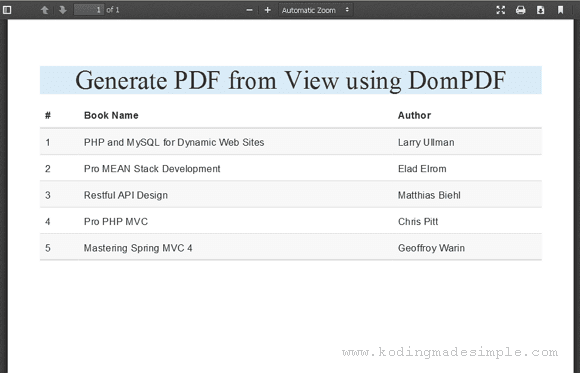
Generate PDF from View using DomPDF in CodeIgniter 3

On 3/19/2018 Be the first to comment!

Hi, in this post let's see how to generate pdf from view using dompdf in codeigniter 3. When it comes to generating reports, the pdf format is the most popular in use. In addition, many websites offer downloadable documents, forms and files in pdf format by converting from html to pdf. There are several add-ons and libraries to aid with the process, such as DOMPDF, MPDF, FPDF, TCPDF, Html2Pdf etc. In this case, I will use the DomPDF library to generate PDF documents in code igniter.

DomPDF renders the html layout to a PDF file and supports the loading of external style sheets and inline css styles when creating pdf.

codeigniter generate pdf from view dompdf

How to Generate PDF from CodeIgniter View?

Here we are going to see how to generate pdf document from a codeigniter view file. Basically dompdf reads the html content, create pdf from html and writes it to the output stream.

The following are the steps to implement PDF generation in code igniter.

STEP-1) First download dompdf library, then extract and move the folder to codeigniter's 'application/library' folder.

STEP-2) Next create a custom code igniter library to create pdf using the dompdf class. Create the file 'pdf.php' inside 'application/library' and copy the below contents into the file.

Pdf.php

<?php
defined('BASEPATH') OR exit('No direct script access allowed');

require_once(dirname(__FILE__) . '/dompdf/autoload.inc.php');

class Pdf
{
    function createPDF($html, $filename='', $download=TRUE, $paper='A4', $orientation='portrait'){
        $dompdf = new Dompdf\DOMPDF();
        $dompdf->load_html($html);
        $dompdf->set_paper($paper, $orientation);
        $dompdf->render();
        if($download)
            $dompdf->stream($filename.'.pdf', array('Attachment' => 1));
        else
            $dompdf->stream($filename.'.pdf', array('Attachment' => 0));
    }
}
?>

In the above class, the function createPDF() converts raw html data into pdf document. It allows you to pass five different parameters to control the way in which the pdf is generated. The first parameter is mandatory and the rest are optional.

By default, the function will create downloadable pdf. If you want to preview the file before downloading it, you must set $download=FALSE.

STEP-3) Then you need the codeigniter view file. This view contains a simple html table which has to be converted into a pdf document.

Create 'GeneratePdfView.php' inside 'application/views' folder and copy the contents below into it.

GeneratePdfView.php

<!DOCTYPE html>
<html>
<head>
    <meta content="width=device-width, initial-scale=1.0" name="viewport">
    <meta charset="utf-8">
    <title>Create PDF from View in CodeIgniter Example</title>
    <link href="https://maxcdn.bootstrapcdn.com/bootstrap/3.3.7/css/bootstrap.min.css" type="text/css" rel="stylesheet" />
</head>
<body>
<h1 class="text-center bg-info">Generate PDF from View using DomPDF</h1>
<table class="table table-striped table-hover">
    <thead>
        <tr>
            <th>#</th>
            <th>Book Name</th>
            <th>Author</th>
        </tr>
    </thead>
    <tbody>
        <tr>
            <td>1</td>
            <td>PHP and MySQL for Dynamic Web Sites</td>
            <td>Larry Ullman</td>
        </tr>
        <tr>
            <td>2</td>
            <td>Pro MEAN Stack Development</td>
            <td>Elad Elrom</td>
        </tr>
        <tr>
            <td>3</td>
            <td>Restful API Design</td>
            <td>Matthias Biehl</td>
        </tr>
        <tr>
            <td>4</td>
            <td>Pro PHP MVC</td>
            <td>Chris Pitt</td>
        </tr>
        <tr>
            <td>5</td>
            <td>Mastering Spring MVC 4</td>
            <td>Geoffroy Warin</td>
        </tr>
        <tbody>
</table>
</body>
</html>

STEP-4) Finally you need a code igniter controller file. Create 'GeneratePdfController.php' inside 'application/controllers'. In the index() function, load the 'pdf' library and convert the view into a pdf file.

GeneratePdfController.php

<?php
defined('BASEPATH') OR exit('No direct script access allowed');

class GeneratePdfController extends CI_Controller {

    function index()
    {
        $this->load->library('pdf');
        $html = $this->load->view('GeneratePdfView', [], true);
        $this->pdf->createPDF($html, 'mypdf', false);
    }
}
?>

That's it. We have all the required files in place. Run the controller and you can see the preview of the newly created pdf document on the browser.

convert html to pdf codeigniter

To simply download the pdf file on load use,

$this->pdf->createPDF($html, 'mypdf');
Read Also:

I hope you now understand better the generation of PDF from the codeigniter view. If you are using composer, just auto load the './vendor/autoload.php' file and you are good to go from there. Hope you find this tutorial useful. Please share it on your social circle if you like it.

Convert HTML to PDF in PHP using DomPDF Library

On 3/12/2018 Be the first to comment!

Hi! In today's post we will see how to convert html to pdf in php using dompdf library. DomPDF is basically a php library that offers a simple way to convert html content to pdf so that you can generate pdf files on fly with php. Frameworks like Laravel offers separate packages to create pdf files, but there is not so much luck when you work on core php. Hence we need external tools for the task and DomPDF is a good fit for it.

The library creates downloadable pdf file from the html webpage. It supports CSS2.1 and CSS3 and renders the html layout including the styles. It also handles @import, @media and @screen queries and can load external stylesheets while generating the pdf.

php convert html to pdf dompdf

1. Convert HTML to PDF - Basic Usage:

Download the dompdf archive from here and extract the contents to your root folder. After that, create a sample php file, 'index.php' and include the autoloader file to load the required dompdf libraries and helper functions into your PHP project.

The following php script describes the basic usage of the dompdf class. It converts simple html content into pdf and output to the browser.

<?php
// include autoloader
require_once 'dompdf/autoload.inc.php';

// import dompdf class into global namespace
use Dompdf\Dompdf;

// instantiate dompdf class
$dompdf = new Dompdf();

// pdf content
$html = '<h1 style="color:blue;">Hello World!</h1><p>A PDF generated by DomPDF library.</p>';

// load html
$dompdf->loadHtml($html);

// set paper size and orientation
$dompdf->setPaper('A4', 'landscape');

// render html as pdf
$dompdf->render();

// output the pdf to browser
$dompdf->stream();
?>

The function setPaper() is optional. If not provided, the default page settings will be used for rendering the pdf.

2. Generate PDF and Show File Preview:

The dompdf library offers an option to preview the pdf file before downloading. After generating the pdf, display it on the browser to get a preview using the stream() method.

This method takes two parameters of which the first is the filename and the second is the optional parameter called Attachment. The default value for this param is '1' forcing the browser to open the download pop-up window. Instead, you must set it as '0' for the browser preview.

<?php
require_once 'dompdf/autoload.inc.php';
use Dompdf\Dompdf;
$dompdf = new Dompdf();
$html = '<h1 style="color:blue;">Hello World!</h1><p>A PDF generated by DomPDF library.</p>';
$dompdf->loadHtml($html);
$dompdf->setPaper('A4', 'landscape');
$dompdf->render();

// preview pdf
$dompdf->stream('newfile',array('Attachment'=>0));
?>
generate pdf from html php dompdf

3. Save PDF to File:

To save the created pdf as a file on your local disk, you must output the rendered pdf to a variable and write it to a file using the file_put_contents() method.

<?php
require_once 'dompdf/autoload.inc.php';
use Dompdf\Dompdf;
$dompdf = new Dompdf();
$html = '<h1 style="color:blue;">Hello World!</h1><p>A PDF generated by DomPDF library.</p>';
$dompdf->loadHtml($html);
$dompdf->setPaper('A4', 'landscape');
$dompdf->render();
// write pdf to a file
$pdf = $dompdf->output();
file_put_contents("newfile.pdf", $pdf);
?>

4. Generate PDF from HTML File:

You can also generate pdf from an html file. First you have to read the contents of the file into a variable using file_get_contents() method and then load it with the loadHtml() function of the library.

<?php
require_once 'dompdf/autoload.inc.php';
use Dompdf\Dompdf;
$dompdf = new Dompdf();
$html = file_get_contents('data.html');
$dompdf->loadHtml($html);
$dompdf->setPaper('A4', 'landscape');
$dompdf->render();
$dompdf->stream('newfile', array('Attachment'=>0));
?>

5. DomPDF Options:

The library offers a range of options for customization. You can set the options at run time like this,

<?php
use Dompdf\Dompdf;
$dompdf = new Dompdf();
$dompdf->set_option('defaultFont', 'Courier');
?>

For the complete list of available options, see the page Dompdf Options on github.

Read Also:

To generate pdf files in your php project, you can use the DomPDF library. The support for CSS gives you good control over the looks of the generated pdf. But keep in mind rendering large tables and files will take time. I hope this post is useful to you. Please share it on social media if you like it.

How to Embed PDF File in HTML Page

On 12/12/2017 5 Comments so far

Hi, today we’ll see how to embed pdf file in a html page directly. Some websites tend to show pdf files directly on their site’s webpages instead of giving a download link for the files. Thanks to HTML5, you can also do the same with simple html code without using any third party solutions. The method we are going to see is the quick and easy solution which gives you some control over how the pdf file is shown to the user. Also it works on all modern web browsers that support HTML5.

How to Embed PDF File in HTML Page

HTML5 provides <embed> element which acts as a container for external application like image, videos, mp3 files or other multimedia objects. Using this tag makes the browser to automatically include controls for the multimedia objects (in case the browser supports the particular media type).

We are going to use this <embed> tag to show the pdf files in the web page without using complex third party scripts. Open the html page in which you want to embed the file and include the below markup wherever you want the pdf file to be shown.

<embed width="600" height="450" src="mypdf.pdf" type="application/pdf"></embed>

The attributes width and height represents the width and height of the pdf container in pixels.

The attribute src is the path to the pdf file to be embedded.

The attribute type is the media type of the embedded content.

Now you open the file in browser and the pdf file is shown in the html page like this.

how to embed pdf file in html page
Read Also:

I hope you like this simple solution to embed the pdf files in website’s html page without hassle.

Contact Form

Name

Email *

Message *