Showing posts with label css. Show all posts

HTML5 Video Player with Custom Controls using JavaScript

On 12/04/2017 Be the first to comment!

Hi! Today let's see how to build html5 video player with custom controls using javascript. The only way to embed videos on webpages before the introduction of html5 is through the use of add-ons such as flash. But thanks to html5, you can insert video contents using native html markup alone. The <video> </video> element in html5 offers a standard way to include video files on web pages. It is supported by all html5 compatible browsers.

Currently, HTML5 supports three types of video formats and they are MP4, WebM, and Ogg. Among the three, MP4 is compatible with all major browsers.

html5 video player custom controls javascript

Creating Video Player in HTML5:

To embed video in an html page, use the <video> element like this,

<video width="640" height="360" controls>
    <source src="videos/flying-seagull.mp4" type="video/mp4">
    <source src="videos/flying-seagull.ogg" type="video/ogg">
    Your browser does not support HTML5 Videos.
</video>
  • You can provide multiple video sources using the <source> element. The browser will choose the first supported format.
  • The attributes 'width' and 'height' defines the width and height of the video. Providing these values will prevent possible flicker at the time of loading.
  • The 'controls' attribute adds the default media controls, such as play, pause, volume slider, fullscreen, etc. to the video player.
  • Older versions of browsers doesn't support html5, in which case, the text added between the <video> </video> tags will be displayed.

Autoplay Videos:

The 'autoplay' attribute will start the video automatically. Including it, the video will be played automatically on page load.

<video width="640" height="360" controls autoplay>
    <source src="videos/flying-seagull.mp4" type="video/mp4">
    Your browser does not support HTML5 Videos.
</video>

Building Custom Controls to HTML5 Video Player:

Okay. Now let's build some custom controls to the video player in HTML5. If you wonder why we need custom controls at all when the player itself provide default ones. The primary reason is that the default controls depend entirely on the browser and may vary from one browser to another. Therefore, building a common user interface will make the player look the same across different browsers

HTML5 provides several DOM properties, methods, and events for the <video> element. You can use them to define custom video controls. Below I have created markup for video player with controls to play, pause, replay, stop, volume up/down and mute videos.

HTML Markup:

<div id="container">
    <h1>Custom HTML5 Video Player</h1>
    <div id="player-container">
        <video id="myplayer" width="640" height="360">
            <source src="videos/flying-seagull.mp4" type="video/mp4">
            Your browser does not support HTML5 Video.
        </video>
        <div id="controls">
            <button onclick="playPause()">Play/Pause</button>
            <button onclick="stopVideo()">Stop</button>
            <button onclick="replayVideo()">Replay</button>
            <button onclick="increaseVolume()">Volume (+)</button>
            <button onclick="decreaseVolume()">Volume (-)</button>
            <button onclick="muteVolume()">Mute/Unmute</button>
        </div>
    </div>
</div>

Style the Player with CSS:

Next, add some css styles to make the player look good.

<style type="text/css">
#container {
    margin: 0 auto;
    width: 666px;
    text-align: center;
}

#player-container {
    margin: 0 auto;
    background-color:black;
    padding-top: 10px;
    padding-bottom: 10px;
    border: 3px solid #4CC1BE;
    border-radius: 7px;
}

#controls {
    margin-top: 6px;
}
</style>

The demo uses only simple buttons but, it's up to you to style them with images. Using bootstrap glyphicons or icon fonts like font-awesome is better suited. You can scale them according to your liking.

JavaScript for Custom Controls:

Finally we have to bind the events of the buttons to javascript functions. Below I have added separate js function for each button event.

<script type="text/javascript">
var player = document.getElementById("myplayer");

function playPause() {
    if (player.paused)
        player.play();
    else
        player.pause();
}

function stopVideo() {
    player.pause();
    if (player.currentTime) {
        player.currentTime = 0;
    }
}

function replayVideo() {
    player.currentTime = 0;
      player.play();
}

function increaseVolume() {
    if (player.volume < 1)
        player.volume = parseFloat(player.volume + 0.1).toFixed(1);
}

function decreaseVolume() {
    if (player.volume > 0)
        player.volume = parseFloat(player.volume - 0.1).toFixed(1);
}

function muteVolume() {
    if (player.muted)
        player.muted = false;
    else
        player.muted = true;
}
</script>

That's it. We have everything in place. Now run the file and you can see a nice html5 video player with custom control buttons at the bottom.
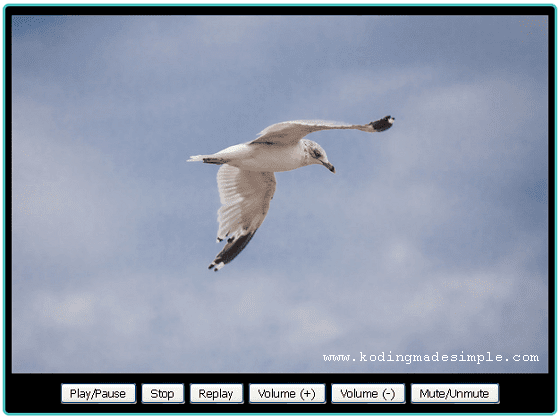
html5 video player controls

Please note that, the demo is just the place to start with. You can build a much more enhanced video player using the DOM properties of HTML5 video element.

Read Also:

That explains about building an html5 video player with custom controls. With the help of javascript and some css, you can build a robust video player with an attractive user interface. I hope you like this tutorial. Will meet you in another interesting one. Please don't forget to share this post on your social networks.

Create Round Social Media Icons / Buttons using CSS

On 12/01/2017 12 Comments so far

Hi, in this post we'll see how to create round social media icons using pure CSS3. We all know how much impact do social signals have on websites and blogs. Here I'll show you the way to create clean and neat social media icons without images using a vector font library called Font Awesome. Font Awesome is the best icon font available and relatively easy to implement in your websites. They are highly scalable icons which means the social media icons we create will look good even in bigger size.

How to Create Social Network Icons with CSS?

To create these css social media icons, all we want to do is 1. Create some css styles, 2. Use Font awesome in those styles to draw up the icons and 3. Apply them to <a> anchor tag. No need to add <div>. You don't even have to download the fonts to use it in your website or blog. Just place the below <link> tag inside the <head> section of the HTML file.

<link href="//netdna.bootstrapcdn.com/font-awesome/4.0.3/css/font-awesome.css" rel="stylesheet"></link>

I have created 2 different styles of round social media icons for websites with 3D look.

Round CSS Social Media Icons - Style 1

This is a neat and elegant round button with slight raised look.

Demo
round-social-media-icons-html-css

Download Code View Demo

There are some properties which will be shared by every button and so in order to avoid repeated code, we just wrap them up in a global css class.

CSS for Global Button
.smGlobalBtn{ /* global button class */
    display: inline-block;
    position: relative;
    cursor: pointer;
    width: 50px;
    height: 50px;
    box-shadow: 0 2px 2px #999;
    padding: 0px;
    text-decoration: none;
    text-align: center;
    color: #fff;
    font-size: 25px;
    font-weight: normal;
    line-height: 2em;
    border-radius: 25px;
    -moz-border-radius:25px;
    -webkit-border-radius:25px;
}

CSS for Social Media Buttons
/* facebook button class*/
.facebookBtn{
    background: #4060A5;
}

.facebookBtn:before{ /* use :before to add the relevant icons */
    font-family: "FontAwesome";
    content: "\f09a"; /* add facebook icon */
}

.facebookBtn:hover{
    color: #4060A5;
    background: #fff;
}

/* twitter button class*/
.twitterBtn{
    background: #00ABE3;
}

.twitterBtn:before{
      font-family: "FontAwesome";
      content: "\f099"; /* add twitter icon */
}

.twitterBtn:hover{
      color: #00ABE3;
      background: #fff;
}

/* google plus button class*/
.googleplusBtn{
    background: #e64522;
}

.googleplusBtn:before{
      font-family: "FontAwesome";
      content: "\f0d5"; /* add googleplus icon */
}

.googleplusBtn:hover{
      color: #e64522;
      background: #fff;
}

/* linkedin button class*/
.linkedinBtn{
    background: #0094BC;
}

.linkedinBtn:before{
      font-family: "FontAwesome";
      content: "\f0e1"; /* add linkedin icon */
}

.linkedinBtn:hover{
      color: #0094BC;
      background: #fff;
}

/* pinterest button class*/
.pinterestBtn{
    background: #cb2027;
}

.pinterestBtn:before{
      font-family: "FontAwesome";
      content: "\f0d2"; /* add pinterest icon */
}

.pinterestBtn:hover{
      color: #cb2027;
      background: #fff;
}

/* tumblr button class*/
.tumblrBtn{
    background: #3a5876;
}

.tumblrBtn:before{
      font-family: "FontAwesome";
      content: "\f173"; /* add tumblr icon */
}

.tumblrBtn:hover{
      color: #3a5876;
      background: #fff;
}

/* rss button class*/
.rssBtn{
    background: #e88845;
}

.rssBtn:before{
      font-family: "FontAwesome";
      content: "\f09e"; /* add rss icon */
}

.rssBtn:hover{
      color: #e88845;
      background: #fff;
}

HTML Markup
<a class="facebookBtn smGlobalBtn" href="social-media-profile-url" ></a>
<a class="twitterBtn smGlobalBtn" href="social-media-profile-url" ></a>
<a class="googleplusBtn smGlobalBtn" href="social-media-profile-url" ></a>
<a class="linkedinBtn smGlobalBtn" href="social-media-profile-url" ></a>
<a class="pinterestBtn smGlobalBtn" href="social-media-profile-url" ></a>
<a class="tumblrBtn smGlobalBtn" href="social-media-profile-url" ></a>
<a class="rssBtn smGlobalBtn" href="social-media-profile-url" ></a>

Round CSS Social Media Icons - Style 2

The second style adds up some spice to the style 1 social media buttons by tweaking the code little bit. It's real charm lies in the hover style.

Demo
rounded-pure-css-social-media-icons

Download Code View Demo

Recommended Read: 5 Free Black and White Social Media Icons Sets using CSS

Recommended Read: Creating Social Media Icons in Bootstrap 3 | A How-To Guide

CSS for Global Button
.smGlobalBtn{ /* global button class */
    display: inline-block;
    position: relative;
    cursor: pointer;
    width: 50px;
    height: 50px;
    border:2px solid #ddd; /* add border to the buttons */
    box-shadow: 0 3px 3px #999;
    padding: 0px;
    text-decoration: none;
    text-align: center;
    color: #fff;
    font-size: 25px;
    font-weight: normal;
    line-height: 2em;
    border-radius: 27px;
    -moz-border-radius:27px;
    -webkit-border-radius:27px;
}

CSS for Social Media Buttons
/* facebook button class*/
.facebookBtn{
    background: #4060A5;
}

.facebookBtn:before{ /* use :before to add the relevant icons */
    font-family: "FontAwesome";
    content: "\f09a"; /* add facebook icon */
}

.facebookBtn:hover{
    color: #4060A5;
    background: #fff;
    border-color: #4060A5; /* change the border color on mouse hover */
}

/* twitter button class*/
.twitterBtn{
    background: #00ABE3;
}

.twitterBtn:before{
      font-family: "FontAwesome";
      content: "\f099"; /* add twitter icon */
      
}

.twitterBtn:hover{
      color: #00ABE3;
      background: #fff;
      border-color: #00ABE3;
}

/* google plus button class*/
.googleplusBtn{
    background: #e64522;
}

.googleplusBtn:before{
      font-family: "FontAwesome";
      content: "\f0d5"; /* add googleplus icon */
}

.googleplusBtn:hover{
      color: #e64522;
      background: #fff;
      border-color: #e64522;
}

/* linkedin button class*/
.linkedinBtn{
    background: #0094BC;
}

.linkedinBtn:before{
      font-family: "FontAwesome";
      content: "\f0e1"; /* add linkedin icon */
}

.linkedinBtn:hover{
      color: #0094BC;
      background: #fff;
      border-color: #0094BC;
}

/* pinterest button class*/
.pinterestBtn{
    background: #cb2027;
}

.pinterestBtn:before{
      font-family: "FontAwesome";
      content: "\f0d2"; /* add pinterest icon */
}

.pinterestBtn:hover{
      color: #cb2027;
      background: #fff;
      border-color: #cb2027;
}

/* tumblr button class*/
.tumblrBtn{
    background: #3a5876;
}

.tumblrBtn:before{
      font-family: "FontAwesome";
      content: "\f173"; /* add tumblr icon */
}

.tumblrBtn:hover{
      color: #3a5876;
      background: #fff;
      border-color: #3a5876;
}

/* rss button class*/
.rssBtn{
    background: #e88845;
}

.rssBtn:before{
      font-family: "FontAwesome";
      content: "\f09e"; /* add rss icon */
}

.rssBtn:hover{
      color: #e88845;
      background: #fff;
      border-color: #e88845;
}

HTML Markup
<a class="facebookBtn smGlobalBtn" href="social-media-profile-url" ></a>
<a class="twitterBtn smGlobalBtn" href="social-media-profile-url" ></a>
<a class="googleplusBtn smGlobalBtn" href="social-media-profile-url" ></a>
<a class="linkedinBtn smGlobalBtn" href="social-media-profile-url" ></a>
<a class="pinterestBtn smGlobalBtn" href="social-media-profile-url" ></a>
<a class="tumblrBtn smGlobalBtn" href="social-media-profile-url" ></a>
<a class="rssBtn smGlobalBtn" href="social-media-profile-url" ></a>

Note: Font Awesome 4.0.3 doesn't support IE7, but older version does.

This is just a small sample of what CSS3 is capable of. You can extend the above css styles to create other social media buttons too. All you want is to unleash your creativity and play with the code. You’ll be amazed at the results. If you find this useful please don’t forget to share it :).

"Like this? I bet you will also want to read my another interesting tutorial on Creating Bootstrap 3 Social Media Icons using CSS. I have tried a different way of adding font awesome library combined with css to create 20 different social networking icons. Check it out here."

How to Add Photo Frame Effect to Images using Pure CSS

On 12/01/2017 Be the first to comment!

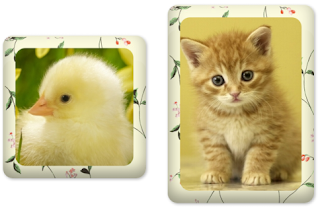
Turn your plain website/blog images into an eye candy thing. CSS can be used to apply stylish image effects. Here is a pure CSS trick to apply photo frame effect to images. No need to completely rely on Photoshop to enhance the appearance of images anymore.

Here are the advantages of using css for image effects:

  1. There is no need for any image processing software.
  2. No image customization required. This CSS style can be used to any image irrespective of its size and type.
  3. Don't want to worry about positioning the images; and it maintains the image aspect ratio.
  4. The CSS styles can be tweaked later to suit your needs without bothering the html pages.

css image effects-photo frame effect

How to Create Photo Frame Effect with CSS?

To pull off the photo frame image effect, we just wrap our <img> tag inside a <div> block. Add a background texture image using "background" property to serve as a photo frame. To make it realistic, we add some "box-shadow" which makes the edges to look like a real photo frame. Now set the width alone to the <div> and <img> to maintain the image aspect ratio*. Center the image both horizontally and vertically inside the div. Now we are done. Wait! Wait. To boost up the beauty of the image, we round the corner of both the <div> and <img> tags. That's it.

Recommended Read: How to add a semi-transparent color layered text over an image using pure CSS

Recommended Read: How to Create Round Social Media icon style buttons using CSS

The resulting image will look like either rectangle or square based on the image width and height.

*Aspect Ratio = Image-Width/Image-Height, and will be 1 for square image.

Create Square/Rectangle Photo Frame Effect

css image effects-square photo frame
Square/Rectangle Photo Frame Effect using CSS

To get this effect we add a flat border radius of 20 px to all the four corners of both <div> block and image.

HTML Markup
<div class="squareFrame">
     <img src="images/kitten.jpg" />
</div>
CSS Code
.squareFrame{
      background: url("images/floral.jpg");
      margin-left:auto;
      margin-right:auto;
      display:table-cell;
      position:relative;
      overflow:hidden;
      width:300px;
      box-shadow: inset 0 50px rgba(255,255,255,0.1),
             inset 2px -15px 30px rgba(0,0,0,0.4),
             2px 2px 5px rgba(0,0,0,0.3);
      padding: 25px;
      border-radius: 20px;
      -webkit-border-radius: 20px;
      -moz-border-radius: 20px;
      vertical-align: middle;
      text-align:center;
}

.squareFrame img{
     width: 300px;
     border-radius: 20px;
     -webkit-border-radius: 20px;
     -moz-border-radius: 20px;
}

Create Round/Oval Photo Frame Effect

css image effects-round photo frame
Round/Oval Photo Frame Effect using CSS

In order to make the frame completely rounded, we set the border radius to 50%. If we use square image we get a perfect round else get an oval shaped frame effect.

HTML Markup

There is not much difference in html except the class name.

<div class="roundFrame">
     <img src="images/kitten.jpg" />
</div>
CSS Code
.roundFrame{
     background: url("images/floral.jpg");
     margin-left:auto;
     margin-right:auto;
     display:table-cell;
     position:relative;
     overflow:hidden;
     width:300px;
     box-shadow: inset 0 50px rgba(255,255,255,0.1),
           inset 2px -15px 30px rgba(0,0,0,0.4),
           2px 2px 5px rgba(0,0,0,0.3);
     padding: 25px;
     border-radius: 50%;
     -webkit-border-radius: 50%;
     -moz-border-radius: 50%;
     vertical-align: middle;
     text-align:center;
}

.roundFrame img{
     width: 300px;
     border-radius: 50%;
    -webkit-border-radius: 50%;
    -moz-border-radius: 50%;
}

Note: Please note that the image border radius is not supported by older versions of browsers and in that case just make the div's "border-radius" to minimum or just use the image as a background for <div> block using "background" property.

Recommended Read: How to add Stunning 3D CSS Photo Frame Effect to Images

Recommended Read: Create a stylish Horizontal Menu Bar with HTML and CSS

Conclusion

I have implemented the styles as CSS class which will be easier to apply for multiple images. All you have to do is just copy paste the above code and give a novelty look to your website/blogs. Want to learn more tricks like this? Then subscribe to our RSS feed. Finally, if you find this post useful, please kindly share it in your circle :).

10 Amazing CSS Drop Cap Effects you can Copy Paste

On 12/01/2017 2 Comments so far

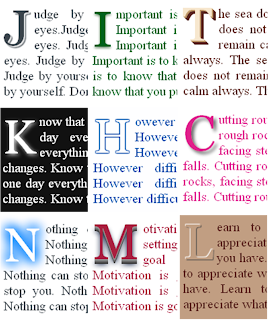
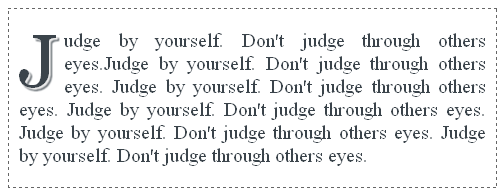
Hi! Today I have come up with some really cool and easy Drop Cap Effects using CSS. You can straight away copy paste the styles and use it, no tweaks required. Earlier we have tried some cool image effects. This time we are going to style the drop caps with few lines of CSS code. Drop cap is a large character at the start of an artilce, section or paragraph which is very common on publishing medias. We’ll take full advantage of CSS text-shadow property to style the drop caps. Come, let’s start exploring.

CSS Drop Cap Effects

How to Create Drop Cap using CSS?

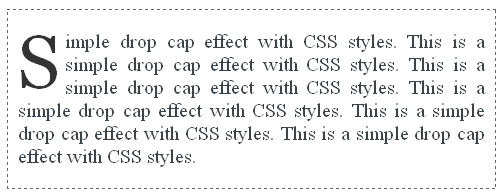
We can create a simple drop cap effect with first-child and first-letter pseudo elements.

Simple CSS Drop Cap

The HTML markup consists of no special code. Just we wrap a set of <p> tags within a <div> block. We want only the first line, first character to be a DROP CAP letter.

We’ll add some basic CSS code to the <div> block to reset the default styles.

CSS Code
div {
     margin: 0;
     padding: 0;
     border: 1px dashed #666;  /* set to none if you don't want border */
     font-family: Georgia;
     font-size: 20px;
     background: #FFF;
     color: #3B444B;
     text-align: justify; 
}

p:first-child:first-letter {
     float: left;
     color: #333;
     font-size: 75px;
     line-height: 60px;
     padding: 5px 5px 0 0;
}
HTML Markup
<div>
     <p>Simple drop cap effect with CSS styles. </p>
     <p>This is the second paragraph. </p>
     <p>This is the third paragraph. </p>
</div>

Only the first <p> tag’s first character “S” will be a drop cap.

The HTML Markup would be of no difference for the rest of the styles we are going to discuss so I’ll give only the CSS styles for them.

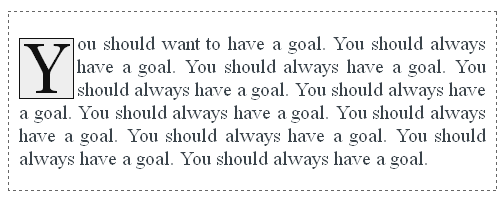
Drop Cap with Border

To the above drop cap, we add some background color and a suitable border to make it more appealing.

CSS Drop Cap with Border
CSS Code
div {
     margin: 0;
     padding: 0;
     border: 1px dashed #666; /* set to none if you don't want border */
     font-family: Georgia;
     font-size: 20px;
     background: #FFF;
     color: #3B444B;
     text-align: justify;
     }

p:first-child:first-letter {
     float: left;
     background: #EEE;
     color: #111;
     margin: 6px 3px 0 0;
     padding: 5px;
     font-size: 70px;
     line-height: 60px;
     border: 1px solid #111;
}

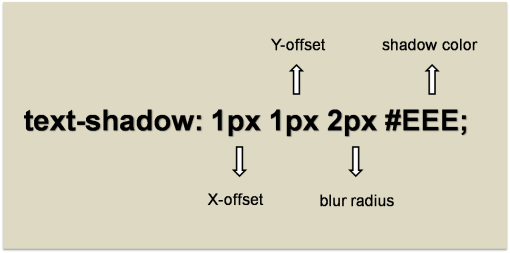
Next we start with text-shadow property which comes in handy to spice up our drop caps with shadows. With the clever usage of shadows we can pull off amazing text effects. Here, take a little sneak peak at the text shadow property.

Text Shadow Syntax

Drop Cap Effects with Single Shadow

These styles add a single shadow to the text to create a simple yet elegant drop cap effects.

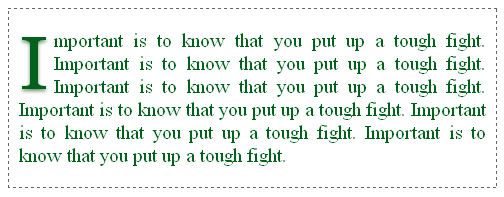
Classic Drop Cap

Classic CSS Drop Cap

The idea behind this style is to add a shadow with a shade lighter than the text with little bit blur radius. You can change the text and shadow color but make sure you use shades from the same color group (I have used green shade in the example).

CSS Code
div {
     margin: 0;
     padding: 0;
     border: 1px dashed #666;
     font-family: Georgia;
     font-size: 20px;
     background: #FFF;
     color: #00611C;
     text-align: justify;
}

p:first-child:first-letter {
     float: left;
     color: #00611C;
     font-size: 75px;
     line-height: 60px;
     padding: 8px 6px 0 0;
     text-shadow: 0 2px 3px #698B69;
}

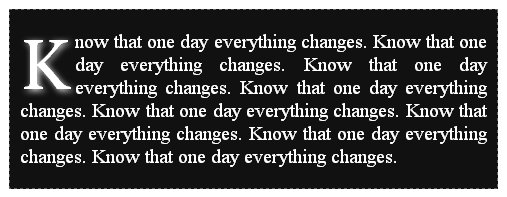
Glowing Drop Cap

Glowing CSS Drop Cap

This style makes the drop cap to glow. Here we should use lighter shade text against dark background.

CSS Code
div {
     margin: 0;
     padding: 0;
     border: 1px dashed #666;
     font-family: Georgia;
     font-size: 20px;
     background: #111;
     color: #FFF;
     text-align: justify;
}

p:first-child:first-letter {
     float: left;
     padding: 10px 6px 0 0;
     background: #111;
     color: #FFF;
     font-size: 70px;
     line-height: 60px;
     text-shadow: 2px 2px 6px #eee;
}

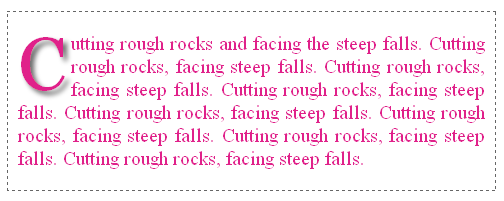
Stand Out Drop Cap

Stand Out CSS Drop Cap

This style gives an effect as though the drop cap stands out of the background frame. Now you can understand how much we can accomplish with text-shadow property. You can change the text color of your choice.

CSS Code
div {
     margin: 0;
     padding: 0;
     border: 1px dashed #666; 
     font-family: Georgia;
     font-size: 20px;
     background: #FFF;
     color: #E0218A;
     text-align: justify;
}

p:first-child:first-letter {
     float: left;
     color: #E0218A;
     padding: 5px 5px 5px 0;
     font-size: 75px;
     line-height: 60px;
     text-shadow: 4px 4px 4px #666;
}

Drop Cap Effects with Double Shadow

We now try some styles using double shadows.

A Classic Double Shaded Drop Cap

Double Shadow CSS Drop Cap

This style makes a wise usage of two shadows with a 1px of blur to smooth the contours of the text and gives a well rounded look to the drop cap.

CSS Code
div {
     margin: 0;
     padding: 0;
     border: 1px dashed #666;
     font-family: Georgia;
     font-size: 20px;
     background: #FFF;
     color: #3B444B;
     text-align: justify;
}

p:first-child:first-letter {
     float: left;
     color: #3B444B;
     font-size: 75px;
     line-height: 60px;
     padding: 6px 6px 0 0;
     text-shadow: 2px 2px 1px #EEE,
     3px 3px 1px #3B444B;
}

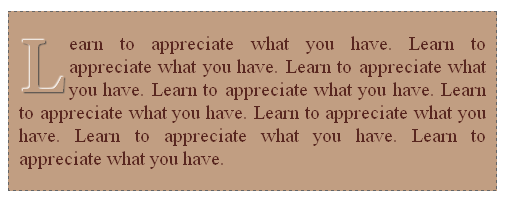
Embossed Drop Cap

Emboss CSS Drop Cap

Always we have awe for embossed text which looks like a bump in the background surface. With the right choice of colors we can bring up this look using text-shadow property. Note that we should use the same color for both text and background.

CSS Code
div {
     margin: 0;
     padding: 0;
     border: 1px dashed #666;
     font-family: Georgia;
     font-size: 20px;
     background: #C19E82;
     color: #592720;
     text-align: justify;
}

p:first-child:first-letter {
     float: left;
     background: #C19E82;
     color: #C19E82;
     padding: 8px 5px 5px 0;
     font-size: 75px;
     line-height: 60px;
     text-shadow: -1px -1px 1px #fff,
     1px 1px 1px #444;
}

Drop Cap Effects with Multiple Shadows

Next we see some drop cap effects produced by using multiple text shadows.

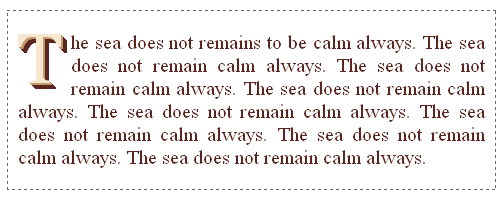
3D Drop Cap

3D CSS Drop Cap

This is an interesting 3D style drop cap. The idea is to choose a lighter shade for the text and add multiple shadows to the text with two different colors, one a bit darker and the second one much darker than the text.

CSS Code
div {
     margin: 0;
     padding: 0;
     border: 1px dashed #666;
     font-family: Georgia;
     font-size: 20px;
     background: #FFF;
     color: #592720;
     text-align: justify;
}

p:first-child:first-letter {
     float: left;
     color: #F7E7CE;
     padding: 3px 10px 5px 0;
     font-size: 70px;
     line-height: 60px;
     text-shadow: 1px 1px 0 #C19A6B,
     2px 2px 0 #C19A6B,
     3px 3px 0 #592720,
     4px 4px 0 #592720,
     5px 5px 0 #592720,
     6px 6px 0 #592720;
}

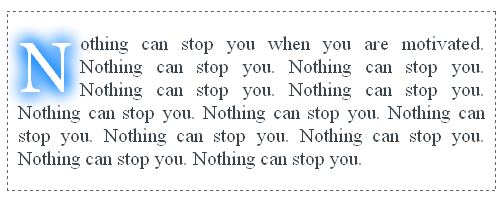
Smoky Drop Cap

Smoky CSS Drop Cap

This is a drop cap style that looks like as though you dragged a finger on a smoky glass window. This is one of the best examples of using shadows to spread a color on all the four directions of a text to make a smudge/smoky appearance. Note that we should use the same color for text and background to get the desired effect.

CSS Code
div {
     margin: 0;
     padding: 0;
     border: 1px dashed #666;
     font-family: Georgia;
     font-size: 20px;
     background: #FFF;
     color: #3B444B;
     text-align: justify;
}

p:first-child:first-letter {
     float: left;
     color: #FFF;
     margin: 6px 3px 0 0;
     padding: 5px 5px 5px 0;
     font-size: 70px;
     line-height: 60px;
     text-shadow: 2px 2px 16px #007FFF,  
     -2px -2px 16px #007FFF,
     -2px 2px 16px #007FFF,
     2px -2px 16px #007FFF;
}

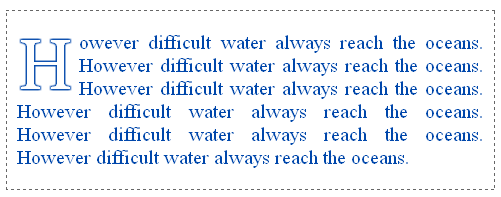
Hollow Outlined Drop Cap

Hollow CSS Drop Cap

This is one of my favorite text effects which create a complete outlined text. In order to make a hollowed drop cap, set the same background color to the drop cap.

CSS Code
div {
     margin: 0;
     padding: 0;
     border: 1px dashed #666; 
     font-family: Georgia;
     font-size: 20px;
     background: #FFF;
     color: #0047AB;
     text-align: justify;
}

p:first-child:first-letter {
     float: left;
     color: #FFF;
     padding: 8px 5px 5px 0;
     font-size: 70px;
     line-height: 60px;
     text-shadow: 1px 1px 1px #0047AB, 
     -1px -1px 1px #0047AB,
     -1px 1px 1px #0047AB,
     1px -1px 1px #0047AB;
}

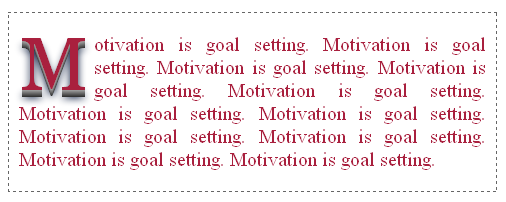
Another 3D Style Drop Cap

Another 3D CSS Drop Cap

Here we go with another 3D style drop cap where we use consecutive darker shades of grey to produce the effect. Of course the text color could be anything of your choice, but it would be more appealing if you stick to stronger shades.

CSS Code
div {
     margin: 0;
     padding: 0;
     border: 1px dashed #666;
     font-family: Georgia;
     font-size: 20px;
     background: #FFF;
     color: #A9203E;
     text-align: justify;
}

p:first-child:first-letter {
     float: left;
     color: #A9203E;
     padding: 5px 5px 10px 0;
     font-size: 75px;
     line-height: 60px;
     text-shadow: 0 1px 0 #999,
     0px 2px 0 #888,
     0px 3px 0 #777,
     0px 4px 0 #666,
     0px 5px 0 #555,
     0px 6px 0 #444,
     0px 7px 0 #333,
     0px 8px 7px #001114;
}

Recommended Read: How to add Photo Frame Effect to Images using pure CSS

Final Thought

For older browsers, you can apply the above discussed styles to <span> tag and then wrap the required drop cap letter inside the <span> like below.

<div>
     <p><span>S</span>imple drop cap effect with CSS styles. </p>
     <p>This is the second paragraph. </p>
     <p>This is the third paragraph. </p>
</div>

There is no limitation to the text effects we can bring up with CSS3. Just I tried to apply some of those effects to drop caps. Now it’s your call to explore it:). Please don't forget to subscribe to our RSS feed to learn more quality CSS tutorials like this.

Stylish Bootstrap Sidebar Menu Example

On 11/30/2017 Be the first to comment!

Bootstrap Sidebar Menu Example: Earlier in one of our tutorials we've discussed about Creating Bootstrap Horizontal Navbar. In this tutorial we'll see how to create sidebar menu in bootstrap. The Bootstrap Sidebar Menu or otherwise called as Bootstrap Vertical Navigation Menu is a list of menu items or links, stacked vertically. It can be placed left or right hand side of the website. Apart from the appearance, it is very similar to horizontal menu and is used to provide easy way of navigation through the website.

Bootstrap Sidebar Menu Example

For this tutorial, we build a customized Dashboard Menu with Bootstrap. This Dashboard Menu (i.e, bootstrap vertical navigation bar) is going to contain a list of stacked up links along with suitable icons to each item in the list. To add menu icons we use Glyphicons. Glyphicons is the icon font that comes with Bootstrap3 and is present inside the 'font' folder of Bootstrap files.

Recommended Read: Add Search Form to Bootstrap Horizontal Navbar

First create an unordered list of menu items and add Bootstrap CSS Class nav, nav-pills & nav-stacked to <ul> element. To differentiate the active menu item from the rest of list use active class to the corresponding <li> element.

Use this HTML Markup to add Bootstrap Vertical Navigation Menu Bar to Website.

Recommended Read: How to Create Bootstrap Vertical Accordion Menu

HTML Markup for Bootstrap Vertical Navigation Menu Bar
<ul id="sidebar" class="nav nav-pills nav-stacked" style="max-width: 200px;">
    <li class="active"><a href="#"><span class="glyphicon glyphicon-off"></span>  Overview</a></li>
    <li><a href="#"><span class="glyphicon glyphicon-user"></span>  Profile</a></li>
    <li><a href="#"><span class="glyphicon glyphicon-lock"></span>  Access</a></li>
    <li><a href="#"><span class="glyphicon glyphicon-envelope"></span>  Message</a></li>
    <li><a href="#"><span class="glyphicon glyphicon-list"></span>  Schedule</a></li>
    <li><a href="#"><span class="glyphicon glyphicon-signal"></span>  Statistics</a></li>
    <li><a href="#"><span class="glyphicon glyphicon-comment"></span>  Chat</a></li>
    <li><a href="#"><span class="glyphicon glyphicon-earphone"></span>  Contacts</a></li>
</ul>

This gives us the Vertical Bootstrap Sidebar Menu with default theme.

Default Bootstrap Left Menu

Recommended Read: How to integrate Twitter Bootstrap 3 with PHP CodeIgniter Framework

Customize Bootstrap Vertical Navigation Menu Bar

Next we overwrite some of the Bootstrap 3 styles to change the default theme of the bootstrap vertical navigation bar. Add these CSS Styles to a new stylesheet and include the stylesheet next to the Bootstrap CSS file and it's done.

Custom CSS for Bootstrap Vertical Navigation Menu Bar
#sidebar {
    background-color: #191919;
    padding: 10px;
}

#sidebar a:hover, a:focus {
    color: #FFF;
    text-decoration: none;
}

#sidebar.nav > li > a,
#sidebar.nav > li > a:link {
    background-color: #191919;
    color: #FFF;
}

#sidebar.nav > li > a:hover,
#sidebar.nav > li > a:focus {
    background-color: #373737;
}

#sidebar.nav-pills > li.active > a,
#sidebar.nav-pills > li.active > a:hover,
#sidebar.nav-pills > li.active > a:focus {
    color: #FFF;
    background-color: #C72A25;
}

This is our new customized bootstrap sidebar navigation menu.

Custom Bootstrap Vertical Menu

Recommended Read: Build Multi-Frame Carousel Image Slider using Twitter Bootstrap 3

Recommended Read: Build Landing Pages in minutes using Bootstrap Jumbotron Plug-in

This was all about creating a custom vertical navigation menu bar in bootstrap. Hope you find this Bootstrap Sidebar Menu tutorial useful. Kindly share it on social media.

How to Add and Customize Twitter Bootstrap3 Breadcrumbs

On 11/30/2017 4 Comments so far

It's a good practice to add breadcrumbs to websites/blogs to enhance the users to find their way around. Also it indicates user’s location (page) and hierarchy of the page within a website. Twitter bootstrap 3 comes with built-in CSS component for adding breadcrumbs. I'll show you how to add and customize the default bootstrap breadcrumb styles as per your requirement. You will learn about breadcrumb customizations such as changing bootstrap breadcrumbs separator, changing its background color, text color etc.

For this tutorial, I assume you already have some basic working knowledge with bootstrap and know how to integrate bootstrap with HTML page. If you are new to bootstrap, here is a good tutorial about Creating Responsive Navbar with Bootstrap 3 which gives you knowledge about integrating bootstrap with HTML.

How to Add Breadcrumbs in Twitter Bootstrap?

To add breadcrumbs create an unordered list and add the page links you want. Next add "breadcrumb" class to the <ul> element.

Recommended Read: How to integrate Twitter Bootstrap 3 with PHP CodeIgniter Framework

HTML Markup for Adding Bootstrap Breadcrumbs
<div class="container">
     <ul class="breadcrumb">
          <li><a href="#">Home</a></li>
          <li><a href="#">Services</a></li>
          <li class="active">Data Mining</li>
     </ul>
</div>

The default bootstrap breadcrumbs will now look like this.

Twitter Bootstrap3 default breadcrumbs
Twitter Bootstrap3 Default Breadcrumbs

Recommended Read: Twitter Bootstrap 3 Navbar with Dropdown Menu and Search Form

Customizing Bootstrap Breadcrumb Styles

In order to customize the default breadcrumbs in bootstrap we've created above, we have to override the original bootstrap breadcrumb styles.

Here is the CSS Code I've used to customize the bootstrap breadcrumbs.

Change Bootstrap Breadcrumbs Background Color

/*change breadcrumb background color*/
.breadcrumb {
     background-color: #FAFAFA;
     border-radius: 0;
     -moz-border-radius: 0;
     -webkit-border-radius: 0;
     -o-border-radius: 0;
}

Change Bootstrap Breadcrumbs Text Color

/*change breadcrumb links color*/
.breadcrumb a {
     color: #666;
}

.breadcrumb a:hover {
     text-decoration: none;
}

/*change active color*/
.breadcrumb > .active {
     color: #9CD05F;
}

Change Bootstrap Breadcrumbs Separator

/*change breadcrumb separator to raquo symbol*/
.breadcrumb > li + li:before {
     content: "\00BB";
     color: #aaa;
}

With all the above css customizations our twitter bootstrap breadcrumbs now look like this.

Twitter Bootstrap3 customized breadcrumbs
Twitter Bootstrap3 Customized Breadcrumbs

Recommended Read: Creating Bootstrap 3 Social Media Icons | How-To Guide

Here is the complete css code to customize bootstrap breadcrumbs styles.

/*customize breadcrumb*/
.breadcrumb {
     background-color: #FAFAFA;
     border-radius: 0;
     -moz-border-radius: 0;
     -webkit-border-radius: 0;
     -o-border-radius: 0;
}

/*change breadcrumb links color*/
.breadcrumb a {
     color: #666;
}

.breadcrumb a:hover {
     text-decoration: none;
}

/*change active color*/
.breadcrumb > .active {
     color: #9CD05F;
}

/*change breadcrumb separator to raquo symbol*/
.breadcrumb > li + li:before {
     content: "\00BB";
     color: #aaa;
}

Recommended Read: Build Bootstrap Sidebar Vertical Menu with Icons

Now that was all about customizing bootstrap breadcrumb styles. Hope you have liked this bootstrap tutorial.

5 Free Black and White Social Media Icons Sets with CSS and HTML

On 11/28/2017 1 Comment so far

Hi! In this article I've come up with 5 modern sets of black and white social media icons using pure css3 and html code. As social media plays major role in creating brand awareness, one cannot overlook the importance of implementing social sharing buttons in their websites. And this article is going to help you with five different styles of social icons to use in your websites. Moreover these icons are built without using images which will improve your website's loading speed too.

free-black-and-white-social-media-icons-html-css

Like my earlier tutorials on pure css social media icons, this post too will use font awesome library. Font Awesome is a scalable vector font library and its icons can be easily customized using css to fit with the rest of your website's theme. It is originally developed for bootstrap but works great with all the other frameworks and even with plain html.

Load Font Awesome Library in HTML File

To use these css social media icons you need font awesome library. Use this line of code inside <head></head> section to load font awesome in the html file.

<link type="text/css" rel="stylesheet" href="path-to-fontawesome/font-awesome.css">

You can either download font awesome and use it locally or link directly from cdn. Check its official website to learn more.

The HTML Code for Social Media Icons

The html markup for including the social sharing buttons will be the same for all the 5 different styles discussed in this post. Only their css code will vary. So use this html code wherever you want to add social icons in your website along with the css code given in this article.

<div class="socialbtns">
    <ul>
        <li><a href="#" class="fa fa-lg fa-facebook"></a></li>
        <li><a href="#" class="fa fa-lg fa-twitter"></a></li>
        <li><a href="#" class="fa fa-lg fa-google-plus"></a></li>
        <li><a href="#" class="fa fa-lg fa-github"></a></li>
        <li><a href="#" class="fa fa-lg fa-pinterest"></a></li>
        <li><a href="#" class="fa fa-lg fa-linkedin"></a></li>
        <li><a href="#" class="fa fa-lg fa-instagram"></a></li>
        <li><a href="#" class="fa fa-lg fa-vimeo-square"></a></li>
        <li><a href="#" class="fa fa-lg fa-stack-overflow"></a></li>
        <li><a href="#" class="fa fa-lg fa-dropbox"></a></li>
        <li><a href="#" class="fa fa-lg fa-tumblr"></a></li>
        <li><a href="#" class="fa fa-lg fa-envelope"></a></li>
        <li><a href="#" class="fa fa-lg fa-flickr"></a></li>
        <li><a href="#" class="fa fa-lg fa-bitbucket"></a></li>
        <li><a href="#" class="fa fa-lg fa-dribbble"></a></li>
        <li><a href="#" class="fa fa-lg fa-search"></a></li>
        <li><a href="#" class="fa fa-lg fa-skype"></a></li>
        <li><a href="#" class="fa fa-lg fa-stack-exchange"></a></li>
        <li><a href="#" class="fa fa-lg fa-youtube"></a></li>
        <li><a href="#" class="fa fa-lg fa-xing"></a></li>
        <li><a href="#" class="fa fa-lg fa-rss"></a></li>
        <li><a href="#" class="fa fa-lg fa-foursquare"></a></li>
        <li><a href="#" class="fa fa-lg fa-youtube-play"></a></li>
        <li><a href="#" class="fa fa-lg fa-cloud"></a></li>
    </ul>
</div>

The above markup will add an unordered list of links. Now we have to style these plain looking icons with css.

The CSS Code for Social Media Icons

As I already said, these are highly customizable icons. Adding a few lines of css code will turn these icons into some unique style. Here goes the trick.

Style 1 - Black and White Minimal Social Media Icons

black-and-white-minimal-social-media-icons

DEMO

The first style is the minimal looking black and white social media icons. As the name implies, these are very stylish and minimal looking icons set that gives a clean and elegant look to your website. All these icons will simply be outlined in black color and the inner portion gives a hollow appearance. On mouse hover they will gradually ease into solid black icons. I have used multiple text shadows to bring out the outline effect to icons and css3 transition property to guarantee smooth animation effect to them.

Here goes the css code for minimal social media icons.

/* minimal sm icons */
a, a:hover {
    color: #000;
    text-decoration: none;
    padding: 5px;
}

.socialbtns, .socialbtns ul, .socialbtns li {
    margin: 0;
    padding: 5px;
}

.socialbtns li {
    list-style: none outside none;
    display: inline-block;
}

.socialbtns .fa {
    color: #FFF;
    text-shadow: 1px 1px 0px #000,
            1px -1px 0px #000,
            -1px 1px 0px #000,
            -1px -1px 0px #000;
    -webkit-text-shadow: 1px 1px 0px #000,
            1px -1px 0px #000,
            -1px 1px 0px #000,
            -1px -1px 0px #000;
    -moz-text-shadow: 1px 1px 0px #000,
            1px -1px 0px #000,
            -1px 1px 0px #000,
            -1px -1px 0px #000;
    -o-text-shadow: 1px 1px 0px #000,
            1px -1px 0px #000,
            -1px 1px 0px #000,
            -1px -1px 0px #000;
    transition: all ease-out 0.5s;
    -moz-transition: all ease-out 0.5s;
    -webkit-transition: all ease-out 0.5s;
    -o-transition: all ease-out 0.5s;
}

.socialbtns .fa:hover {
    color: #000;
    text-shadow: 1px 1px 0px #fff,
            1px -1px 0px #fff,
            -1px 1px 0px #fff,
            -1px -1px 0px #fff;
    -webkit-text-shadow: 1px 1px 0px #fff,
            1px -1px 0px #fff,
            -1px 1px 0px #fff,
            -1px -1px 0px #fff;
    -moz-text-shadow: 1px 1px 0px #fff,
            1px -1px 0px #fff,
            -1px 1px 0px #fff,
            -1px -1px 0px #fff;
    -o-text-shadow: 1px 1px 0px #fff,
            1px -1px 0px #fff,
            -1px 1px 0px #fff,
            -1px -1px 0px #fff;
    transition: all ease 0.5s;
    -moz-transition: all ease-in 0.5s;
    -webkit-transition: all ease-in 0.5s;
    -o-transition: all ease-in 0.5s;
}

Style 2 - Classic Square Black and White Social Media Icons

create-social-media-icons-for-website

DEMO

The second style is of a classic square icons set with white logo against solid black background. The square icons will ease into circle with smooth transition on hover. By increasing the border radius property of all the four corners of the icons, we can easily turn the square button into a circular one. The css transition will ensure you a smooth animation effect. Here goes the css code for the square social icons.

/* square sm icons */
a, a:hover {
    text-decoration: none;
}

.socialbtns, .socialbtns ul, .socialbtns li {
    margin: 0;
    padding: 5px;
}

.socialbtns li {
    list-style: none outside none;
    display: inline-block;
}

.socialbtns .fa {
    width: 40px;
    height: 28px;
    color: #FFF;
    background-color: #000;
    padding-top: 12px;
    transition: all ease 0.5s;
    -moz-transition: all ease 0.5s;
    -webkit-transition: all ease 0.5s;
    -o-transition: all ease 0.5s;
}

.socialbtns .fa:hover {
    border-radius: 20px;
    -moz-border-radius: 20px;
    -webkit-border-radius: 20px;
    -o-border-radius: 20px;
    transition: all ease 0.5s;
    -moz-transition: all ease 0.5s;
    -webkit-transition: all ease 0.5s;
    -o-transition: all ease 0.5s;
}

Style 3 - Black and White Rounded Social Media Icons

black-and-white-pure-css-social-media-icons

DEMO

This is another one interesting style of icons set. Rounded Social Media Icons are always alluring and being black and white round icons, these are no exceptions to that. The icons are circular in shape with white logo against black background color and on mouse hover they will zoom out from the rest of the icons. This zooming effect is generated by scaling up the icon by one third of its size. Even at the bigger size these icons will look awesome. Adding smooth animation just gives you an illusion as though these icons zoom in and out without hitches. Here goes the css for these rounded social media icons.

/* round sm icons */
a, a:hover {
    text-decoration: none;
}

.socialbtns, .socialbtns ul, .socialbtns li{
    margin: 0;
    padding: 5px;
}

.socialbtns li {
    list-style: none outside none;
    display: inline-block;
}

.socialbtns .fa {
    width: 40px;
    height: 28px;
    color: #FFF;
    background-color: #000;
    padding-top: 12px;
    border-radius: 20px;
    -moz-border-radius: 20px;
    -webkit-border-radius: 20px;
    -o-border-radius: 20px;
    transition: all ease 0.5s;
    -moz-transition: all ease 0.5s;
    -webkit-transition: all ease 0.5s;
    -o-transition: all ease 0.5s;
}

.socialbtns .fa:hover {
    transform: scale(1.2,1.2);
    -moz-transform: scale(1.2,1.2);
    -webkit-transform: scale(1.2,1.2);
    -o-transform: scale(1.2,1.2);
    transition: all ease 0.5s;
    -moz-transition: all ease 0.5s;
    -webkit-transition: all ease 0.5s;
    -o-transition: all ease 0.5s;
}

Style 4 - Hollow Social Media Icons with Outer Ring

black-and-white-round-social-media-icons

DEMO

These hollow looking icons are somewhat similar to the third style but without solid fill of black color, these icons will give you a hollow effect with black outer ring. On mouse hover, it fills out beautifully with solid black background color. Here is the css code for it.

/* hollow sm icons */
a, a:hover {
    text-decoration: none;
}

.socialbtns, .socialbtns ul, .socialbtns li {
    margin: 0;
    padding: 5px;
}

.socialbtns li {
    list-style: none outside none;
    display: inline-block;
}

.socialbtns .fa {
    width: 40px;
    height: 28px;
    color: #000;
    background-color: #FFF;
    border: 1px solid #000;
    padding-top: 12px;
    border-radius: 22px;
    -moz-border-radius: 22px;
    -webkit-border-radius: 22px;
    -o-border-radius: 22px;
}

.socialbtns .fa:hover {
    color: #FFF;
    background-color: #000;
    border: 1px solid #000;
}

Style 5 - Black and White Spinning Social Media Icons

spinning-css3-social-media-icons

DEMO

Here goes the crazy stuff. Yep! The final set is of spinning social media icons in black and white. This is a beautiful pack of flat and round social media icons which on mouse hover, spin off 360 degree and ease out in the reverse direction when the mouse pointer leaves the icon. The css3 transform property ensures a smooth rotation of the icons that spin in clockwise and anti-clockwise direction. Here is the css code for spinning social media icons.

/* spinning sm icons */
a, a:hover {
    text-decoration: none;
}

.socialbtns, .socialbtns ul, .socialbtns li {
    margin: 0;
    padding: 5px;
}

.socialbtns li {
    list-style: none outside none;
    display: inline-block;
}

.socialbtns .fa {
    color: #FFF;
    background-color: #000;
    width: 40px;
    height: 28px;
    padding-top: 12px;
    border-radius: 20px;
    -moz-border-radius: 20px;
    -webkit-border-radius: 20px;
    -o-border-radius: 20px;
    transition: all ease 0.3s;
    -moz-transition: all ease 0.3s;
    -webkit-transition: all ease 0.3s;
    -o-transition: all ease 0.3s;
}

.socialbtns .fa:hover {
    transition: all ease 0.3s;
    -moz-transition: all ease 0.3s;
    -webkit-transition: all ease 0.3s;
    -o-transition: all ease 0.3s;
    transform: rotate(360deg);
    -moz-transform: rotate(360deg);
    -webkit-transform: rotate(360deg);
    -o-transform: rotate(360deg);
}

I have included more than 25 social sharing icons here for you to pick out. Just remember, including too many social sharing buttons will confuse the reader. So choose wisely where your websites audience hang out most.

Read Also

I hope you love these black and white social media icons collections.

Bootstrap Popover Example with HTML on Hover

On 11/26/2017 2 Comments so far

Bootstrap Popover is not just another Tooltip but it has been introduced to display additional information of any element in a web page - something similar to iPad. The real power of the popovers has been their ability to hold images, videos, text or any other html markup. But I haven’t seen anywhere a proper example of bootstrap popovers that reveals their true nature. So many of them are using it like a mere tooltip with some text.

But don’t worry. Let me show you here the right example of bootstrap popover with html content.

Bootstrap Popover Example with HTML on Hover

For this example, I want to display a popover for an image and to show and hide on mouse hover. And that too with html markup. This is how you should create it.

<!DOCTYPE html>
<html>
<head>
    <meta charset="utf-8">
    <meta name="viewport" content="width=device-width, initial-scale=1.0">
    <title>Bootstrap Popover Example</title>
    <link rel="stylesheet" href="/path/to/bootstrap.css"type="text/css" />
</head>

<body>
    <img src="images/nissan-micra.jpg" alt="nissan-micra" id="vehicle" data-toggle="popover" />
    
    <script src="/path/to/jquery-1.10.2.js"></script>
    <script src="/path/to/bootstrap.js"></script>

    <script type="text/javascript">
        $(document).ready(function(){
            $('#vehicle').popover({
                title: '<h4><span class="glyphicon glyphicon-hand-right"></span> Nissan Micra</h4>',
                content: '<ul><li>1.6L I4 Engine</li><li>109 HP Power</li><li>Front-Wheel Drive</li><li>5-Speed Manual</li><li>2+3 Seating</li></ul>',
                html: true,
                container: 'body',
                placement: 'right',
                trigger: 'hover'
            });
        });
    </script>
</body>
</html>

And the above code would result something like this,

twitter-bootstrap-popover-example-on-hover-with-html
Bootstrap Popover Example on Hover

The method, $('#vehicle').popover() will trigger the popover component of the particular element on hover. Similar to tooltip component, bootstrap popovers also should be triggered manually.

Moreover this method comes with various customizing options and I have used some of them in the above script to display popover as per my liking.

  • The option title - will add title to the popover.
  • The option content - is the actual content displayed inside the popover component.
  • The option html - set as true to insert html markup inside the content.
  • The option container - will append the popover to a specific element given. Here it appends it to body.
  • The option placement - this will set the position of the popover. It can take any of the four directions such as left / right / top / bottom.
  • The option trigger - it tells how the popover should be triggered. Setting it as hover will show only when the mouse hovers over the element.

Also you can see that the above popover example uses a simple icon - which is from bootstrap’s glyphicon on the heading section. Likewise you can show up images or videos or whatever you need.

Setting Bootstrap Popover Options via Data Attribute

I prefer javascript to set option values but bootstrap also provides alternative way to set them. That is by using data attributes.

If you want to use data attribute method, then prefix all the above options with ‘data-’ like data-title data-content data-trigger etc. And you can skip the option settings inside the popover method. Use it simply like this.

<img src="images/nissan-micra.jpg" alt="nissan-micra" id="vehicle" data-toggle="popover" data-title="My Heading" data-content="my content" data-placement="top" data-trigger="hover" />

...

<script type="text/javascript">
    $(document).ready(function(){
        $('#vehicle').popover();
    });
</script>
Recommended Read:

That’s all about creating bootstrap popovers on hover with html content. I hope you like this bootstrap popover example. Meet you in the next post. Good Day :)

How to Create Responsive Multi Level Drop Down Menu in Bootstrap

On 11/22/2017 1 Comment so far

Hi, I'm back with another one twitter bootstrap tutorials, which discusses about how to create a responsive multi level drop down menu in twitter bootstrap. Building html drop down menu in bootstrap is quite easy as the css framework provides built in components for doing it. But at times you may want to expand the website’s navigation menu into multi-level drop down especially when developing large portals or shopping sites. Unfortunately bootstrap 3.x versions doesn’t provide readymade styles for this but definitely you can accomplish it with some workaround.

If you wish to learn to build simple responsive drop down menu in bootstrap then check out this bootstrap dropdown menu tutorial.

Creating Responsive Multi Level Drop Down Menu in Bootstrap

Though there is no direct way to create multilevel dropdown menu, bootstrap framework is quite flexible and provides excellent base to extend its functionalities. It’s .dropdown-menu css class provides means for adding dropdown menu items and we should extend it to add further levels to the menu.

Step-1: First we should have all the required files in place to start working. So create html file with name ‘index.html’ in your working directory and make sure to include bootstrap's css, javascript and jquery files to it like below.

<html>
<head>
    <meta name="viewport" content="width=device-width, initial-scale=1.0">
    <link href="/path/to/bootstrap.css" rel="stylesheet" type="text/css" />
</head>
<body>

    ...
    <script src="/path/to/jquery-1.10.2.js" type="text/javascript"></script>
    <script src="/path/to/bootstrap.js" type="text/javascript"></script>
</body>
</html>

Step-2: Now we need to include some custom css styles, so create a stylesheet with name ‘custom.css’ and add the below css styles to it.

.dropdown-submenu {
    position: relative;
}

.dropdown-submenu > .dropdown-menu {
    top: 0;
    left: 100%;
    margin-top: -5px;
    margin-left: -1px;
    -webkit-border-radius: 0 6px 6px 6px;
    -moz-border-radius: 0 6px 6px;
    border-radius: 0 6px 6px 6px;
}

.dropdown-submenu:hover > .dropdown-menu {
    display: block;
}

.dropdown-submenu > a:after {
    display: block;
    content: " ";
    float: right;
    width: 0;
    height: 0;
    border-color: transparent;
    border-style: solid;
    border-width: 5px 0 5px 5px;
    border-left-color: #ccc;
    margin-top: 5px;
    margin-right: -10px;
}

.dropdown-submenu:hover > a:after {
    border-left-color: #fff;
}

.dropdown-submenu.pull-left {
    float: none;
}

.dropdown-submenu.pull-left > .dropdown-menu {
    left: -100%;
    margin-left: 10px;
    -webkit-border-radius: 6px 0 6px 6px;
    -moz-border-radius: 6px 0 6px 6px;
    border-radius: 6px 0 6px 6px;
}

Step-3: Now link this custom stylesheet below bootstrap’s css file like this.

<link href="/path/to/custom.css" rel="stylesheet" type="text/css" />

Step-4: Well! We have all the required css styles in place, now it’s time to write up the actual html markup to check if we can build multilevel drop down menu in bootstrap with all the above tweaks. Copy paste the below code to our index file.

<nav class="navbar navbar-inverse" role="navigation">
   <div class="container-fluid">
      <!-- header -->
      <div class="navbar-header">
         <button type="button" class="navbar-toggle" data-toggle="collapse" data-target="#multi-level-dropdown">
         <span class="sr-only">Toggle navigation</span>
         <span class="icon-bar"></span>
         <span class="icon-bar"></span>
         <span class="icon-bar"></span>
         </button>
         <a class="navbar-brand" href="index.html">MyHOME</a>
      </div>
      <!-- menus -->
      <div class="collapse navbar-collapse" id="multi-level-dropdown">
         <ul class="nav navbar-nav">
         <li><a href="#">Kitchen Accessories</a></li>
         <li class="dropdown">
            <a href="#" class="dropdown-toggle" data-toggle="dropdown">Interiors<b class="caret"></b></a>
            <ul class="dropdown-menu">
            <li><a href="#">Furnitures</a></li>
            <li><a href="#">Fans</a></li>
            <li class="dropdown-submenu">
               <a href="#" tabindex="-1">Lamps</a>
               <ul class="dropdown-menu">
               <li><a href="#">Ceiling Lamps</a></li>
               <li><a href="#">Table Lamps</a></li>
               <li class="dropdown-submenu">
                  <a href="#" tabindex="-1">Floor Lamps</a>
                  <ul class="dropdown-menu">
                  <li><a href="#">Living Room</a></li>
                  <li><a href="#">Bed Room</a></li>
                  <li><a href="#">Garden Lamps</a></li>
                  </ul>
               </li>
               </ul>
            </li>
            </ul>
         </li>
         <li><a href="#">Bath Fittings</a></li>
         </ul>
      </div>
   </div>
</nav>

As you can see above, we have used the custom css class .dropdown-submenu to the <li> element wherever we want to go one level further down the menu.

Now open the index file in browser and you can see a nicely responsive bootstrap multi level drop down menu.

create responsive multilevel drop down menu in bootstrap
Responsive Multi-Level Dropdown Menu in Twitter Bootstrap

The complete code for index.html:

<!DOCTYPE html>
<html>
<head>
   <meta name="viewport" content="width=device-width, initial-scale=1.0">
   <link href="/path/to/bootstrap.css" rel="stylesheet" type="text/css" />
   <link href="/path/to/custom.css" rel="stylesheet" type="text/css" />
</head>
<body>
   <!-- bootstrap responsive multi-level dropdown menu -->
   <nav class="navbar navbar-inverse" role="navigation">
      <div class="container-fluid">
         <!-- header -->
         <div class="navbar-header">
            <button type="button" class="navbar-toggle" data-toggle="collapse" data-target="#multi-level-dropdown">
            <span class="sr-only">Toggle navigation</span>
            <span class="icon-bar"></span>
            <span class="icon-bar"></span>
            <span class="icon-bar"></span>
            </button>
            <a class="navbar-brand" href="index.html">MyHOME</a>
         </div>
         <!-- menus -->
         <div class="collapse navbar-collapse" id="multi-level-dropdown">
            <ul class="nav navbar-nav">
            <li><a href="#">Kitchen Accessories</a></li>
            <li class="dropdown">
               <a href="#" class="dropdown-toggle" data-toggle="dropdown">Interiors<b class="caret"></b></a>
               <ul class="dropdown-menu">
               <li><a href="#">Furnitures</a></li>
               <li><a href="#">Fans</a></li>
               <li class="dropdown-submenu">
                  <a href="#" tabindex="-1">Lamps</a>
                  <ul class="dropdown-menu">
                  <li><a href="#">Ceiling Lamps</a></li>
                  <li><a href="#">Table Lamps</a></li>
                  <li class="dropdown-submenu">
                     <a href="#" tabindex="-1">Floor Lamps</a>
                     <ul class="dropdown-menu">
                     <li><a href="#">Living Room</a></li>
                     <li><a href="#">Bed Room</a></li>
                     <li><a href="#">Garden Lamps</a></li>
                     </ul>
                  </li>
                  </ul>
               </li>
               </ul>
            </li>
            <li><a href="#">Bath Fittings</a></li>
            </ul>
         </div>
      </div>
   </nav>
   <script src="/path/to/jquery-1.10.2.js" type="text/javascript"></script>
   <script src="/path/to/bootstrap.js" type="text/javascript"></script>
</body>
</html>

And that was all about creating responsive multi level drop down menu in twitter bootstrap. If you want to change bootstrap’s navigation menu color, then take a look at this twitter bootstrap navbar customization tutorial.

Recommended Read:

Reference: http://bootsnipp.com/snippets/featured/multi-level-dropdown-menu-bs3

Contact Form

Name

Email *

Message *