Showing posts with label Bootstrap. Show all posts

Dynamic Treeview Menu using PHP, MySQL and AJAX Example

On 3/26/2018 Be the first to comment!

How to Create Dynamic Treeview Menu using PHP, MySQL and AJAX? Most modern websites use tree view to display the dynamic sidebar menu for easy navigation. In case you don't know, a Treeview is a hierarchical representation of elements in a tree-like structure. You can go for jquery solution in this context, but I would recommend 'Bootstrap Treeview' plug-in if you use the bootstrap framework to build your websites.

The plug-in uses JSON dataset to create a hierarchical tree structure. I have already discussed the creation of static treeview menu using bootstrap treeview. But you can also generate a dynamic tree where you pull off the data elements stored in the database. In this tutorial I'm going to show you about creating dynamic treeview using php, mysql, ajax and bootstrap.

bootstrap dynamic treeview example

How to Create Dymanic Treeview in PHP & MySQL?

For the demo, I'm going to load all the required libraries via CDN. So there's no need to download them to your web server.

Here are the simple steps to build a dynamic tree view structure.

STEP-1) First create the mysql database required for the example. I would suggest you follow the same schema given below to maintain the hierarchy structure.

CREATE DATABASE `my_demo`;
USE `my_demo`;

CREATE TABLE `tbl_categories` (
  `id` int(10) NOT NULL AUTO_INCREMENT,
  `item_name` varchar(50) NOT NULL,
  `parent_id` int(10) NOT NULL,
  PRIMARY KEY (`id`)
) ENGINE=MyISAM DEFAULT CHARSET=latin1 AUTO_INCREMENT=18;

INSERT INTO `tbl_categories` (`id`, `item_name`, `parent_id`) VALUES
(1, 'Electronics', 0),
(2, 'Televisions', 1),
(3, 'Tube', 2),
(4, 'LCD', 2),
(5, 'Plasma', 2),
(6, 'Computers and Laptops', 1),
(7, 'Desktops', 6),
(8, 'Laptops', 6),
(9, 'Netbooks', 6),
(10, 'Tablets', 6),
(11, 'Android', 10),
(12, 'iPad', 10),
(13, 'Mobile Phones', 1),
(14, 'Basic Cell Phones', 13),
(15, 'Smartphones', 13),
(16, 'Android Phones', 15),
(17, 'iPhone', 15);

STEP-2) Next create a php script to be executed by ajax call. This will fetch the menu data from the 'tbl_categories' table, create hierarchical tree structure and return it as JSON data.

fetch_categories.php

<?php
$db = mysqli_connect('localhost', 'mysql_username', 'mysql_password', 'my_demo');
$sql = 'select id, item_name as name, item_name as text, parent_id from tbl_categories';
$result = mysqli_query($db, $sql);

$tree_data = mysqli_fetch_all($result, MYSQLI_ASSOC);

foreach($tree_data as $k => &$v){
    $tmp_data[$v['id']] = &$v;
}

foreach($tree_data as $k => &$v){
    if($v['parent_id'] && isset($tmp_data[$v['parent_id']])){
        $tmp_data[$v['parent_id']]['nodes'][] = &$v;
    }
}

foreach($tree_data as $k => &$v){
    if($v['parent_id'] && isset($tmp_data[$v['parent_id']])){
        unset($tree_data[$k]);
    }
}

echo json_encode($tree_data);
?>

STEP-3) Finally, create an HTML file and add placeholder to show the tree view. Here you have to load all the required libraries such as bootstrap, jquery and bootstrap treeview libraries.

index.html

<!DOCTYPE html>
<html>
<head>
    <title>PHP and MySQl Dynamic Treeview Example</title>
    <link href="https://maxcdn.bootstrapcdn.com/bootstrap/3.3.0/css/bootstrap.min.css" rel="stylesheet" type="text/css" />
    <link href="https://cdnjs.cloudflare.com/ajax/libs/bootstrap-treeview/1.2.0/bootstrap-treeview.min.css" rel="stylesheet" type="text/css" />
</head>

<body>
    <div class="container">
        <div class="row">
            <div class="col-sm-4">
            <h3 class="text-center bg-primary">Dynamic Treeview Example</h3>
                <div id="myTree"></div>
            </div>

            <div class="col-sm-8">
                <!-- here goes other page contents -->
            </div>
        </div>
    </div>
    <script src="https://code.jquery.com/jquery-2.1.1.min.js" type="text/javascript"></script>
    <script src="https://cdnjs.cloudflare.com/ajax/libs/bootstrap-treeview/1.2.0/bootstrap-treeview.min.js" type="text/javascript"></script>
    
    <script type="text/javascript">
    $(document).ready(function(){
        $.ajax({
            url: 'fetch_categories.php',
            method: 'GET',
            dataType: 'json',
            success: function(data){
                $('#myTree').treeview({data: data});
            }
        });
    });
    </script>
</body>
</html>

In the success function of the ajax() call, we have invoked the treeview() method of the 'bootstrap-treeview' library to display the tree structure on the corresponding placeholder.

When you run 'index.html' a tree menu similar to this one will appear,

ajax dynamic treeview php mysql example
Read Also:

Similarly, you can create treeview dynamically using php, mysql and ajax. You can also add icons, check boxes and filters to the nodes of the tree menu. Check the documentation to learn more about it. I hope this tutorial is useful for you. Please share it on social media if you like it.

How to Create Treeview with Bootstrap and jQuery

On 2/12/2018 Be the first to comment!

Hi! Today let's see about creating treeview using bootstrap and jquery. A Treeview is a tree like representation of elements in a hierarchical structure. It offers a quick and easy navigation through websites. Although there are several jquery plugins available for tree view that simplify the task, I wanted something that works well with bootstrap.

And I found out a good library called 'Bootstrap Treeview'. It leverages the best of bootstrap framework and helps you display hierarchical tree structures using the JSON data set. You can do much more than a simple tree, like fetch data from the database and render a dynamic tree, make it collapsible, add icons, checkboxes and filters etc.

how to create treeview in bootstrap

Building Treeview with Bootstrap:

Now let's see how to add treeview in bootstrap. To build the menu, we need three different libraries,

  1. Bootstrap CSS
  2. jQuery
  3. Bootstrap Treeview

These libraries are available in the cdn, so you can load them directly on your projects without downloading. Here is the procedure.

Step-1) Load Stylesheets

First load the required style sheets into your html file. You need to link both 'bootstrap' and 'bootstrap treeview' css files.

<link href="https://maxcdn.bootstrapcdn.com/bootstrap/3.3.0/css/bootstrap.min.css" rel="stylesheet" type="text/css" />
<link href="https://cdnjs.cloudflare.com/ajax/libs/bootstrap-treeview/1.2.0/bootstrap-treeview.min.css" rel="stylesheet" type="text/css" />

Step-2) Load JavaScript Libraries

Next you have to load the java script files. Be sure to load jquery before tree view to avoid dependency issues.

<script src="https://code.jquery.com/jquery-2.1.1.min.js" type="text/javascript"></script>
<script src="https://cdnjs.cloudflare.com/ajax/libs/bootstrap-treeview/1.2.0/bootstrap-treeview.min.js" type="text/javascript"></script>

Step-3) Create Placeholder for Tree View

Next add an html container to work as a placeholder for the tree view. Just a div block would do.

<div id="myTree"></div>

Step-4) Define JSON Data Structure

Now define the JSON structure required to hold the hierarchical data that will be displayed on the tree view menu.

var treeData = [
    {
        text: "Parent-Item-1",
        nodes: [
            {
                text: "Child-Item-1",
                nodes: [
                    {
                        text: "Grandchild-Item-1"
                    },
                    {
                        text: "Grandchild-Item-2"
                    }
                ]
            },
            {
                text: "Child-Item-2"
            }
        ]
    },
    {
        text: "Parent-Item-2"
    },
    {
        text: "Parent-Item-3"
    },
    {
        text: "Parent-Item-4"
    },
    {
        text: "Parent-Item-5"
    }
];

Step-5) Render the Treeview

Finally, display the tree structure in the placeholder element we have created in Step-3. For that, bind the treeview() method to the 'div' container and pass the json data to it.

$('#myTree').treeview({
    data: treeData
});

Above script will produce a tree view similar to this,

bootstrap treeview example

Read: Create Dynamic Treeview using PHP, MySQL and AJAX

Complete Script: index.html

<!DOCTYPE html>
<html>
<head>
    <title>Bootstrap Treeview Example</title>
    <link href="https://maxcdn.bootstrapcdn.com/bootstrap/3.3.0/css/bootstrap.min.css" rel="stylesheet" type="text/css" />
    <link href="https://cdnjs.cloudflare.com/ajax/libs/bootstrap-treeview/1.2.0/bootstrap-treeview.min.css" rel="stylesheet" type="text/css" />
</head>
<body>
    <div class="col-sm-4">
        <div id="myTree"></div>
    </div>
    <script src="https://code.jquery.com/jquery-2.1.1.min.js" type="text/javascript"></script>
    <script src="https://cdnjs.cloudflare.com/ajax/libs/bootstrap-treeview/1.2.0/bootstrap-treeview.min.js" type="text/javascript"></script>
    <script type="text/javascript">
    $(document).ready(function(){
        var treeData = [
            {
                text: "Parent-Item-1",
                nodes: [
                    {
                        text: "Child-Item-1",
                        nodes: [
                            {
                                text: "Grandchild-Item-1"
                            },
                            {
                                text: "Grandchild-Item-2"
                            }
                        ]
                    },
                    {
                        text: "Child-Item-2"
                    }
                ]
            },
            {
                text: "Parent-Item-2"
            },
            {
                text: "Parent-Item-3"
            },
            {
                text: "Parent-Item-4"
            },
            {
                text: "Parent-Item-5"
            }
        ];
        $('#myTree').treeview({
            data: treeData
        });
    });
    </script>
</body>
</html>

In our example we have built a basic tree. But the plug-in offers several options to customize the appearance and behavior of the menu. Like changing colors, adding icons, badges and hyperlinks to the node items. Check here to know more about customizing options.

Read Also:

It's a hassle-free way to build a hierarchical tree-view using the bootstrap treeview plug-in. It works well with Apps that use bootstrap. I hope this post is useful for you. Please don't forget to share it on social networks if you like it.

PHP CodeIgniter Pagination with Twitter Bootstrap Styles - Example

On 1/20/2018 24 Comments so far

PHP Codeigniter framework provides a good number of libraries required for building a website with codeigniter and pagination library is one among them. For those who are not familiar with the term pagination, this refers to the set of numbered links that allows you to navigate from page to page to view a large set of data. For example let's say you want to fetch and display some data from database and it contains several hundreds of records. In that case pagination will be very useful to display the database resultset in chunks and let the user to skim through several page links (similar to google search results).

However the pagination links in codeigniter are plain looking in nature and a little customization to codeigniter pagination doesn't hurt. Here we'll see in this tutorial, how to style codeigniter pagination links with twitter bootstrap styles.

Implement Twitter Bootstrap Styles in CodeIgniter Pagination

We'll see an example below to fetch and display the list of department names and their department head in a neat table view along with pagination links at the bottom.

MySQL Database Example

As an example I'll use this below 'employee' database for this tutorial.

SET SQL_MODE="NO_AUTO_VALUE_ON_ZERO";
--
-- Database: `employee`
--
CREATE TABLE IF NOT EXISTS `tbl_dept` (
  `int_id` int(4) NOT NULL AUTO_INCREMENT,
  `var_dept_name` varchar(50) NOT NULL,
  `int_hod` int(5) NOT NULL,
  KEY `int_id` (`int_id`)
) ENGINE=MyISAM  DEFAULT CHARSET=latin1 AUTO_INCREMENT=1 ;

CREATE TABLE IF NOT EXISTS `tbl_emp` (
  `int_id` int(5) NOT NULL AUTO_INCREMENT,
  `var_emp_name` varchar(50) NOT NULL,
  `int_dept_id` int(4) NOT NULL,
  PRIMARY KEY (`int_id`)
) ENGINE=MyISAM  DEFAULT CHARSET=latin1 AUTO_INCREMENT=1 ;

The Model ('models/department_model.php')

First we create a model file with a method to fetch and return the entire department details along with the head of the department employee name.

<?php
class department_model extends CI_Model{
    function __construct()
    {
        // Call the Model constructor
        parent::__construct();
    }

    //fetch department details from database
    function get_department_list($limit, $start)
    {
        $sql = 'select var_dept_name, var_emp_name from tbl_dept, tbl_emp where tbl_dept.int_hod = tbl_emp.int_id order by var_dept_name limit ' . $start . ', ' . $limit;
        $query = $this->db->query($sql);
        return $query->result();
    }
}
?>

The Controller ('controllers/department.php')

Next create the controller file and load the codeigniter pagination library and the department model file which we created earlier in the constructor method. Then create the index() function where we configure the behavior of the pagination library with the $config[] array and create the pagination links to be displayed at the bottom of the department table in the view file.

<?php
class department extends CI_Controller
{
    public function __construct()
    {
        parent::__construct();
        $this->load->helper('url');
        $this->load->database();
        $this->load->library('pagination');

        //load the department_model
        $this->load->model('department_model');
    }

    public function index()
    {
        //pagination settings
        $config['base_url'] = site_url('department/index');
        $config['total_rows'] = $this->db->count_all('tbl_dept');
        $config['per_page'] = "5";
        $config["uri_segment"] = 3;
        $choice = $config["total_rows"] / $config["per_page"];
        $config["num_links"] = floor($choice);

        //config for bootstrap pagination class integration
        $config['full_tag_open'] = '<ul class="pagination">';
        $config['full_tag_close'] = '</ul>';
        $config['first_link'] = false;
        $config['last_link'] = false;
        $config['first_tag_open'] = '<li>';
        $config['first_tag_close'] = '</li>';
        $config['prev_link'] = '&laquo';
        $config['prev_tag_open'] = '<li class="prev">';
        $config['prev_tag_close'] = '</li>';
        $config['next_link'] = '&raquo';
        $config['next_tag_open'] = '<li>';
        $config['next_tag_close'] = '</li>';
        $config['last_tag_open'] = '<li>';
        $config['last_tag_close'] = '</li>';
        $config['cur_tag_open'] = '<li class="active"><a href="#">';
        $config['cur_tag_close'] = '</a></li>';
        $config['num_tag_open'] = '<li>';
        $config['num_tag_close'] = '</li>';

        $this->pagination->initialize($config);
        $data['page'] = ($this->uri->segment(3)) ? $this->uri->segment(3) : 0;

        //call the model function to get the department data
        $data['deptlist'] = $this->department_model->get_department_list($config["per_page"], $data['page']);           

        $data['pagination'] = $this->pagination->create_links();

        //load the department_view
        $this->load->view('department_view',$data);
    }
}
?>

As you can see in the above code, we have integrated bootstrap's '.pagination' class to codeigniter pagination links. Using the '.active' css class will highlight the active page in the links.

The View ('views/department_view.php')

Finally create view file to display the department list in a neat striped table with bootstrap pagination links at the bottom.

<!DOCTYPE html>
<html>
<head>
    <meta name="viewport" content="width=device-width, initial-scale=1.0">
    <title>PHP CodeIgniter Pagination with Bootstrap Styles | Example</title>
    <!--link the bootstrap css file-->
    <link rel="stylesheet" href="<?php echo base_url("bootstrap/css/bootstrap.css"); ?>">
</head>
<body>
<div class="container">
    <div class="row">
        <div class="col-md-12">
            <table class="table table-striped table-hover">
                <thead>
                    <tr>
                        <th>#</th>
                        <th>Department Name</th>
                        <th>Head of Department</th>
                    </tr>
                </thead>
                <tbody>
                    <?php for ($i = 0; $i < count($deptlist); ++$i) { ?>
                    <tr>
                        <td><?php echo ($page+$i+1); ?></td>
                        <td><?php echo $deptlist[$i]->var_dept_name; ?></td>
                        <td><?php echo $deptlist[$i]->var_emp_name; ?></td>
                    </tr>
                    <?php } ?>
                </tbody>
            </table>
        </div>
    </div>
    <div class="row">
        <div class="col-md-12 text-center">
            <?php echo $pagination; ?>
        </div>
    </div>
</div>
</body>
</html>

We have used bootstrap table styles such as '.table', '.table-striped', '.table-hover' to display the department list in a neat format and at the bottom with pagination links.

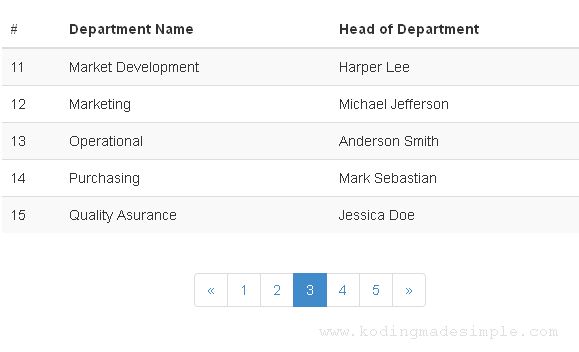
Open the controller in the browser and you get the department details displayed like this.

codeigniter-bootstrap-pagination-example
Read:

I hope now you get a better understanding of integrating twitter bootstrap styles with codeigniter pagination links.

Related Read: CodeIgniter-Bootstrap Pagination with Search Query Filter

Last Modified: Nov-10-2017

Codeigniter Login and Registration Tutorial & Source Code

On 1/09/2018 57 Comments so far

Today we'll see a codeigniter tutorial demonstrating user login and registration system. As you know Login and Signup Module (User Management System) forms the base for membership driven websites and applications. I have written about codeingiter login and registration process separately earlier, but got requests from blog readers to provide a complete user management module. So in today's post, I have tried to cover as much as possible in user module comprising home, login, signup and user profile/dashboard page.

So let us see how to create complete codeigniter login and registration system.

Create Database for CI Login & Signup Module:

First create the mysql database required for the codeigniter user management system.

Read Also:
CREATE DATABASE `testdb`;
USE `testdb`;

CREATE TABLE IF NOT EXISTS `user` (
  `id` int(12) NOT NULL AUTO_INCREMENT,
  `fname` varchar(30) NOT NULL,
  `lname` varchar(30) NOT NULL,
  `email` varchar(60) NOT NULL,
  `password` varchar(40) NOT NULL,
  PRIMARY KEY (`id`),
  UNIQUE KEY `email` (`email`)
) ENGINE=MyISAM  DEFAULT CHARSET=latin1 AUTO_INCREMENT=1 ;

Run the above the sql commands in mysql db and create the necessary database and table.

Build CodeIgniter Login and Registration System:

To build our codeigniter login and registration system we need a bunch of controller, view and model files. Here are the files we are going to create.

  • home.php - This is the Home page controller of the user management application.
  • login.php - It's the user login form controller file.
  • signup.php - This one is the user signup page(registration) controller.
  • profile.php - This is the controller for my profile/dashboard page.
  • home_view.php - It is the Home page view file.
  • login_view.php - View file for login controller.
  • signup_view.php - View file for signup/registration controller.
  • profile_view.php – It is the user profile view file.
  • user_model.php - This is the model file for the user management module. Here we place all the db transactions of the module.

Codeignitor User Login and Registration System:

In case you don't know, below are the steps breakdown for what we are going to build in this user login/signup system in code igniter.

  1. The user enters the Home page which contains links for Login and Signup on top navigation menu.
  2. As for New Users » user click on Signup link » user redirected to signup/registration form » user fills up the form details and submit » process user details and store it into database » notify user.
  3. As for Registered Users » user click on the Login link on Home page » user redirected to login form » user enter login credentials » authenticate user and redirect to User Profile page.
  4. For Singed-in users » Show User's name and Logout link on top menu bar.
  5. When user clicks on Logout » destroy session and redirect to Home page.

Note: As for designing user interface, I have used the readily available Twitter Bootstrap CSS as it's easier this way and mobile responsive in nature. Check here to know about using bootstrap with codeigniter framework.

Home.php

This is controller for the Home/Main page of the user management module and it shows Login and Signup link at the top menu for guests and User's Name and Logout link for signed-in users.

<?php
class home extends CI_Controller
{
 public function __construct()
 {
  parent::__construct();
  $this->load->helper(array('url', 'html'));
  $this->load->library('session');
 }
 
 function index()
 {
  $this->load->view('home_view');
 }
 
 function logout()
 {
  // destroy session
        $data = array('login' => '', 'uname' => '', 'uid' => '');
        $this->session->unset_userdata($data);
        $this->session->sess_destroy();
  redirect('home/index');
 }
}
?>

Signup.php

This is the controller file for the codeigniter user registration form. It collects first name, last name, email id and password from the user and validates the input and stores it into database.

<?php
class signup extends CI_Controller
{
    public function __construct()
    {
        parent::__construct();
        $this->load->helper(array('form','url'));
        $this->load->library(array('session', 'form_validation'));
        $this->load->database();
        $this->load->model('user_model');
    }

    function index()
    {
        // set form validation rules
        $this->form_validation->set_rules('fname', 'First Name', 'trim|required|alpha|min_length[3]|max_length[30]|xss_clean');
        $this->form_validation->set_rules('lname', 'Last Name', 'trim|required|alpha|min_length[3]|max_length[30]|xss_clean');
        $this->form_validation->set_rules('email', 'Email ID', 'trim|required|valid_email|is_unique[user.email]');
        $this->form_validation->set_rules('password', 'Password', 'trim|required|matches[cpassword]|md5');
        $this->form_validation->set_rules('cpassword', 'Confirm Password', 'trim|required');

        // submit
        if ($this->form_validation->run() == FALSE)
        {
            // fails
            $this->load->view('signup_view');
        }
        else
        {
            //insert user details into db
            $data = array(
                'fname' => $this->input->post('fname'),
                'lname' => $this->input->post('lname'),
                'email' => $this->input->post('email'),
                'password' => $this->input->post('password')
            );

            if ($this->user_model->insert_user($data))
            {
                $this->session->set_flashdata('msg','<div class="alert alert-success text-center">You are Successfully Registered! Please login to access your Profile!</div>');
                redirect('signup/index');
            }
            else
            {
                // error
                $this->session->set_flashdata('msg','<div class="alert alert-danger text-center">Oops! Error.  Please try again later!!!</div>');
                redirect('signup/index');
            }
        }
    }
}
?>

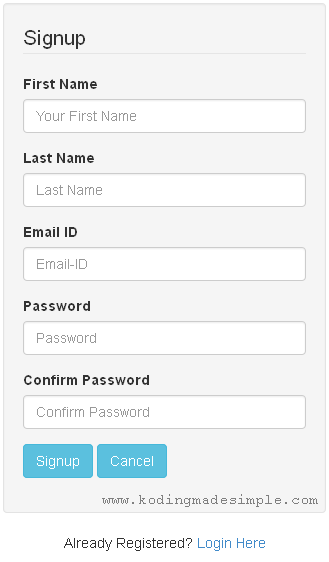
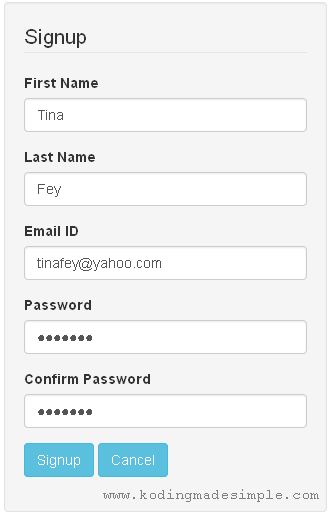
This is how the signup form looks like,

codeigniter-signup-form

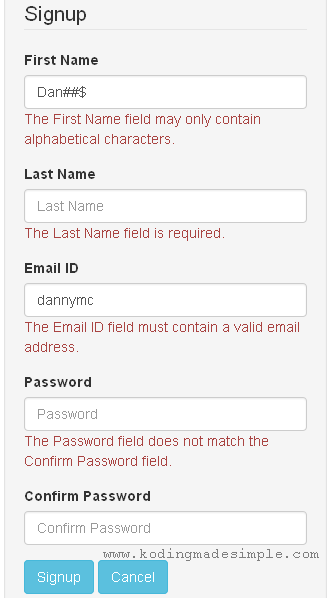
All fields are mandatory and once the user submits the form the input will be validated against a set of form validation rules. If the validation fails, user will be prompted to enter right data by showing the error message like this.

codeigniter-signup-form-validation-error

If validation succeeds, registration process will be completed and notified to the user.

Login.php

This is the controller file for user login process. It asks for user's email address and password and check if the provided login credentials are correct or not.

<?php
class login extends CI_Controller
{
    public function __construct()
    {
        parent::__construct();
        $this->load->helper(array('form','url','html'));
        $this->load->library(array('session', 'form_validation'));
        $this->load->database();
        $this->load->model('user_model');
    }
    
    function index()
    {
        // get form input
        $email = $this->input->post("email");
        $password = $this->input->post("password");

        // form validation
        $this->form_validation->set_rules("email", "Email-ID", "trim|required|xss_clean");
        $this->form_validation->set_rules("password", "Password", "trim|required|xss_clean");

        if ($this->form_validation->run() == FALSE)
        {
            // validation fail
            $this->load->view('login_view');
        }
        else
        {
            // check for user credentials
            $uresult = $this->user_model->get_user($email, $password);
            if (count($uresult) > 0)
            {
                // set session
                $sess_data = array('login' => TRUE, 'uname' => $uresult[0]->fname, 'uid' => $uresult[0]->id);
                $this->session->set_userdata($sess_data);
                redirect("profile/index");
            }
            else
            {
                $this->session->set_flashdata('msg', '<div class="alert alert-danger text-center">Wrong Email-ID or Password!</div>');
                redirect('login/index');
            }
        }
    }
}
?>

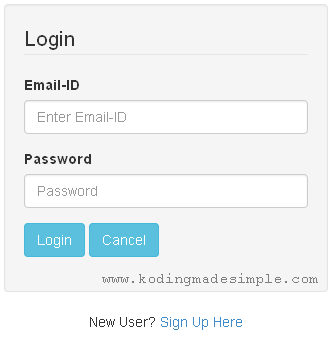
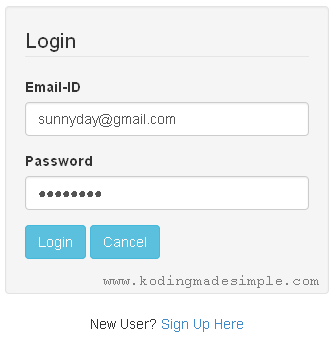
It produces a login form like this,

codeigniter-login-system-form

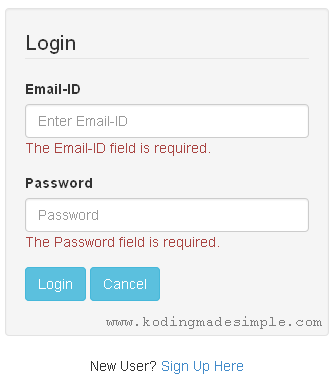
If login failed, the user will be shown an error message like this,

codeigniter-login-form-validation-error

If user credentials are valid, then it will be stored in session and user will be redirected to profile/dashboard page.

Profile.php

This is the controller for the User Profile page. It lists user profile summary and other details.

<?php
class profile extends CI_Controller
{
    public function __construct()
    {
        parent::__construct();
        $this->load->helper(array('url','html'));
        $this->load->library('session');
        $this->load->database();
        $this->load->model('user_model');
    }

    function index()
    {
        $details = $this->user_model->get_user_by_id($this->session->userdata('uid'));
        $data['uname'] = $details[0]->fname . " " . $details[0]->lname;
        $data['uemail'] = $details[0]->email;
        $this->load->view('profile_view', $data);
    }
}
?>

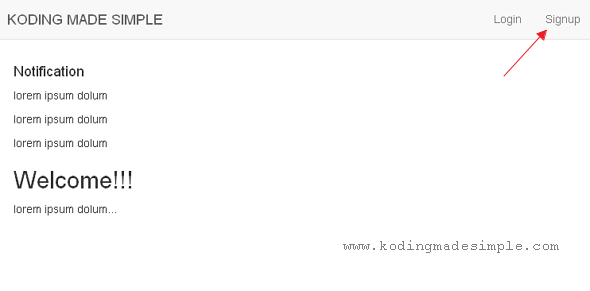
That's it. These are all the important controller files required for the code igniter user registration and login system. Now run the app and go to Home page.

codeigniter-login-and-registration-tutorial-home-page
CodeIgniter Login and Registration System - Home Page

Click on Signup link and it will take you to the user signup form.

codeigniter-login-and-registration-tutorial-signup-page

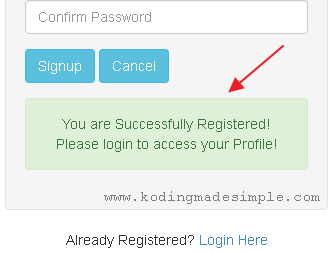
Now enter the details and submit the form. If things gone right, you will be shown with a success message like this,

codeignitor-user-registration-process-success

Now click on the Login link to go to the login page.

codeigniter-login-and-registration-tutorial-login-page

Provide the email and password which you have registered earlier. Now you will be redirected to your Profile page.
codeigniter-login-and-registration-tutorial-profile-page
CodeIgniter Login and Registration Module - User Profile Page

To sign-out the session, click on Logout link at the top navigation menu which will take you back to Home page.

CodeIgniter Login and Registration Source Code:

Download Source

Read Also:

Well! Now we have created user login and registration system in codeignator. I hope you have enjoyed this codeigniter login and registration tutorial. Please let me know your queries through comments :)

How to Update Data in Database using ID in CodeIgniter

On 12/12/2017 7 Comments so far

How to update data in database using id in codeigniter?. Using codeigniter update query will let you perform update operation on database. In the previous post, I explained you about how to insert data into database using codeigniter and bootstrap. This tutorial will demonstrates you about updating database records in codeigniter.

CodeIgniter DB Update is going to be very easy as we have made required ground coding in CodeIgniter Database Insert tutorial. The update model, controller, and the view files will share some of the same features like insert along with fewer coding of its own.

Update Data in Database using ID in CodeIgniter

If you are a regular reader of Koding Made Simple, then you would have known, in most of my tutorials I use Twitter Bootstrap CSS Framework to design the front end. In this codeigniter database update tutorial too, I'm going to combine bootstrap with codeigniter to design the update form.

Setting up MySQL Database

For DB, I'm going to use the same employee database used in codeigniter insert tutorial. Run this sql file in MySQL to create the DB.

SET SQL_MODE="NO_AUTO_VALUE_ON_ZERO";

CREATE TABLE IF NOT EXISTS `tbl_department` (
  `department_id` int(4) NOT NULL AUTO_INCREMENT,
  `department_name` varchar(80) NOT NULL,
  PRIMARY KEY (`department_id`)
) ENGINE=MyISAM  DEFAULT CHARSET=latin1 AUTO_INCREMENT=6 ;

INSERT INTO `tbl_department` (`department_id`, `department_name`) VALUES
(1, 'Finance'),
(2, 'HQ'),
(3, 'Operations'),
(4, 'Marketing'),
(5, 'Sales');

CREATE TABLE IF NOT EXISTS `tbl_designation` (
  `designation_id` int(4) NOT NULL AUTO_INCREMENT,
  `designation_name` varchar(50) NOT NULL,
  PRIMARY KEY (`designation_id`)
) ENGINE=MyISAM  DEFAULT CHARSET=latin1 AUTO_INCREMENT=6 ;

INSERT INTO `tbl_designation` (`designation_id`, `designation_name`) VALUES
(1, 'VP'),
(2, 'Manager'),
(3, 'Executive'),
(4, 'Trainee'),
(5, 'Senior Executive');

CREATE TABLE IF NOT EXISTS `tbl_employee` (
  `employee_id` int(4) NOT NULL AUTO_INCREMENT,
  `employee_no` int(6) NOT NULL,
  `employee_name` varchar(60) NOT NULL,
  `department_id` int(4) NOT NULL,
  `designation_id` int(4) NOT NULL,
  `hired_date` date NOT NULL,
  `salary` int(10) NOT NULL,
  PRIMARY KEY (`employee_id`),
  UNIQUE KEY `employee_no` (`employee_no`)
) ENGINE=MyISAM  DEFAULT CHARSET=latin1 AUTO_INCREMENT=7 ;

INSERT INTO `tbl_employee` (`employee_id`, `employee_no`, `employee_name`, `department_id`, `designation_id`, `hired_date`, `salary`) VALUES
(1, 1001, 'Steve John', 1, 2, '2013-08-01', 60000);

The Model File ('models/employee_model.php')

<?php
/* 
 * File Name: employee_model.php
 */
if ( ! defined('BASEPATH')) exit('No direct script access allowed');

class employee_model extends CI_Model
{
    function __construct()
    {
        //Call the Model constructor
        parent::__construct();
    }

    //fetch employee record by employee no
    function get_employee_record($empno)
    {
        $this->db->where('employee_no', $empno);
        $this->db->from('tbl_employee');
        $query = $this->db->get();
        return $query->result();
    }
    
    //get department table to populate the department name dropdown
    function get_department()
    { 
        $this->db->select('department_id');
        $this->db->select('department_name');
        $this->db->from('tbl_department');
        $query = $this->db->get();
        $result = $query->result();

        //array to store department id & department name
        $dept_id = array('-SELECT-');
        $dept_name = array('-SELECT-');

        for ($i = 0; $i < count($result); $i++)
        {
            array_push($dept_id, $result[$i]->department_id);
            array_push($dept_name, $result[$i]->department_name);
        }
        return $department_result = array_combine($dept_id, $dept_name);
    }
    
    //get designation table to populate the designation dropdown
    function get_designation()     
    { 
        $this->db->select('designation_id');
        $this->db->select('designation_name');
        $this->db->from('tbl_designation');
        $query = $this->db->get();
        $result = $query->result();

        $designation_id = array('-SELECT-');
        $designation_name = array('-SELECT-');

        for ($i = 0; $i < count($result); $i++)
        {
            array_push($designation_id, $result[$i]->designation_id);
            array_push($designation_name, $result[$i]->designation_name);
        }
        return $designation_result = array_combine($designation_id, $designation_name);
    }
}
?>

Read: How to integrate Twitter Bootstrap 3 with PHP CodeIgniter Framework

As said earlier, the model file will be similar to the Codeigniter Bootstrap Insert example but with one additional method to fetch the employee record for the given employee number. Rest of the two methods get_department() and get_designation() will be the same as insert. These two methods are used to populate the drop down list in the update form.

The Controller File ('controllers/updateEmployee.php')

<?php
/* 
 * File Name: updateEmployee.php
 */
if ( ! defined('BASEPATH')) exit('No direct script access allowed');

class updateEmployee extends CI_Controller
{
    public function __construct()
    {
        parent::__construct();
        $this->load->library('session');
        $this->load->helper('form');
        $this->load->helper('url');
        $this->load->database();
        $this->load->library('form_validation');
        //load the employee model
        $this->load->model('employee_model');
    }
    
    //index function
    function index($empno)
    {
        $data['empno'] = $empno;

        //fetch data from department and designation tables
        $data['department'] = $this->employee_model->get_department();
        $data['designation'] = $this->employee_model->get_designation();

        //fetch employee record for the given employee no
        $data['emprecord'] = $this->employee_model->get_employee_record($empno);    

        //set validation rules
        $this->form_validation->set_rules('employeename', 'Employee Name', 'trim|required|xss_clean|callback_alpha_only_space');
        $this->form_validation->set_rules('department', 'Department', 'callback_combo_check');
        $this->form_validation->set_rules('designation', 'Designation', 'callback_combo_check');
        $this->form_validation->set_rules('hireddate', 'Hired Date', 'required');
        $this->form_validation->set_rules('salary', 'Salary', 'required|numeric');

        if ($this->form_validation->run() == FALSE)
        {   
            //fail validation
            $this->load->view('update_employee_view', $data);
        }
        else
        {
            //pass validation
            $data = array(
                'employee_name' => $this->input->post('employeename'),
                'department_id' => $this->input->post('department'),
                'designation_id' => $this->input->post('designation'),
                'hired_date' => @date('Y-m-d', @strtotime($this->input->post('hireddate'))),
                'salary' => $this->input->post('salary'),
            );

            //update employee record
            $this->db->where('employee_no', $empno);
            $this->db->update('tbl_employee', $data);

            //display success message
            $this->session->set_flashdata('msg', '<div class="alert alert-success text-center">Employee Record is Successfully Updated!</div>');
            redirect('updateEmployee/index/' . $empno);
        }
    }
    
    //custom validation function for dropdown input
    function combo_check($str)
    {
        if ($str == '-SELECT-')
        {
            $this->form_validation->set_message('combo_check', 'Valid %s Name is required');
            return FALSE;
        }
        else
        {
            return TRUE;
        }
    }

    //custom validation function to accept only alpha and space input
    function alpha_only_space($str)
    {
        if (!preg_match("/^([-a-z ])+$/i", $str))
        {
            $this->form_validation->set_message('alpha_only_space', 'The %s field must contain only alphabets or spaces');
            return FALSE;
        }
        else
        {
            return TRUE;
        }
    }
}
?>

Read: How to Create Login Form in CodeIgniter, MySQL and Twitter Bootstrap

Create the controller file and load the necessary codeigniter libraries along with employee model. Here we update the employee records based on employee number field. Pass it as a url parameter when we call the controller like this,

http://yourdomain.com/ci-demo/index.php/updateEmployee/index/1001

The last uri segment '1001' is the argument to the controller index() function.

Pre Populate the CodeIgniter Update Form with Database Data

Next call back all the three model methods get_department(), get_designation(), get_employee_record() and store them in the data array to pass it to the view file.

Add Form Validation to CodeIgniter Update Form

Next set the validation rules for the form input fields. I have disabled the employee number field to restrict the user from editing it. So no validation for that field.

Use CodeIgniter Update Query to Edit Database Record

Next run the validation rule on the submitted values and display the error message on failed validation. Else move the post data into an array and use codeigniter update query statement, $this->db->update() to update the particular employee record provided by $this->db->where() statement.

CodeIgniter-Update-Database-Form-Validation-Error

Upon successful db update, we notify the user by displaying a message using set_flashdata() method.

CodeIgniter-Update-Query-Success-Message

The View File ('views/update_employee_view.php')

<!DOCTYPE html>
<html>
<head>
    <meta charset="utf-8">
    <meta name="viewport" content="width=device-width, initial-scale=1.0">
    <title>CodeIgniter Update Database Demo | CodeIgniter Update Query</title>
    <!--link the bootstrap css file-->
    <link href="<?php echo base_url("assets/bootstrap/css/bootstrap.css"); ?>" rel="stylesheet" type="text/css" />
    <!-- link jquery ui css-->
    <link href="<?php echo base_url('assets/jquery-ui-1.11.2/jquery-ui.min.css'); ?>" rel="stylesheet" type="text/css" />
    <!--include jquery library-->
    <script src="<?php echo base_url('assets/js/jquery-1.10.2.js'); ?>"></script>
    <!--load jquery ui js file-->
    <script src="<?php echo base_url('assets/jquery-ui-1.11.2/jquery-ui.min.js'); ?>"></script>
        
    <style type="text/css">
    .colbox {
        margin-left: 0px;
        margin-right: 0px;
    }
    </style>
    
    <script type="text/javascript">
    //load datepicker control onfocus
    $(function() {
        $("#hireddate").datepicker();
    });
    </script>
    
</head>
<body>
<br>

<div class="container">
    <div class="row">
        <div class="col-md-6 col-md-offset-3 well">
        <legend>CodeIgniter Update Database Demo</legend>
        <?php 
        $attributes = array("class" => "form-horizontal", "id" => "employeeform", "name" => "employeeform");
        echo form_open("updateEmployee/index/" . $empno, $attributes);?>
        <fieldset>
            
            <div class="form-group">
            <div class="row colbox">
            
            <div class="col-md-4">
                <label for="employeeno" class="control-label">Employee Number</label>
            </div>
            <div class="col-md-8">
                <input id="employeeno" name="employeeno" placeholder="employeeno" type="text" disabled="disabled" class="form-control"  value="<?php echo $emprecord[0]->employee_no; ?>" />
                <span class="text-danger"><?php echo form_error('employeeno'); ?></span>
            </div>
            </div>
            </div>

            <div class="form-group">
            <div class="row colbox">
            <div class="col-md-4">
                <label for="employeename" class="control-label">Employee Name</label>
            </div>
            <div class="col-md-8">
                <input id="employeename" name="employeename" placeholder="employeename" type="text" class="form-control"  value="<?php echo set_value('employeename', $emprecord[0]->employee_name); ?>" />
                <span class="text-danger"><?php echo form_error('employeename'); ?></span>
            </div>
            </div>
            </div>
            
            <div class="form-group">
            <div class="row colbox">
            <div class="col-md-4">
                <label for="department" class="control-label">Department</label>
            </div>
            <div class="col-md-8">
            
                <?php
                $attributes = 'class = "form-control" id = "department"';
                echo form_dropdown('department',$department,set_value('department', $emprecord[0]->department_id),$attributes);?>
                <span class="text-danger"><?php echo form_error('department'); ?></span>
            </div>
            </div>
            </div>

            <div class="form-group">
            <div class="row colbox">
            <div class="col-md-4">
                <label for="designation" class="control-label">Designation</label>
            </div>
            <div class="col-md-8">
            
                <?php
                $attributes = 'class = "form-control" id = "designation"';
                echo form_dropdown('designation',$designation, set_value('designation', $emprecord[0]->designation_id), $attributes);?>
                
                <span class="text-danger"><?php echo form_error('designation'); ?></span>
            </div>
            </div>
            </div>
            
            <div class="form-group">
            <div class="row colbox">
            <div class="col-md-4">
                <label for="hireddate" class="control-label">Hired Date</label>
            </div>
            <div class="col-md-8">
                <input id="hireddate" name="hireddate" placeholder="hireddate" type="text" class="form-control"  value="<?php echo set_value('hireddate', @date('d-m-Y', @strtotime($emprecord[0]->hired_date))); ?>" />
                <span class="text-danger"><?php echo form_error('hireddate'); ?></span>
                
            </div>
            </div>
            </div>
            
            <div class="form-group">
            <div class="row colbox">
            <div class="col-md-4">
                <label for="salary" class="control-label">Salary</label>
            </div>
            <div class="col-md-8">
                <input id="salary" name="salary" placeholder="salary" type="text" class="form-control"  value="<?php echo set_value('salary', $emprecord[0]->salary); ?>" />
                <span class="text-danger"><?php echo form_error('salary'); ?></span>
            </div>
            </div>
            </div>
            
            <div class="form-group">
            <div class="col-sm-offset-4 col-md-8 text-left">
                <input id="btn_update" name="btn_update" type="submit" class="btn btn-primary" value="Update" />
                <input id="btn_cancel" name="btn_cancel" type="reset" class="btn btn-danger" value="Cancel" />
            </div>
            </div>
        </fieldset>
        <?php echo form_close(); ?>
        <?php echo $this->session->flashdata('msg'); ?>
        </div>
    </div>
</div>
</body>
</html>

The codeigniter view contains the update form. Here we receive employee record fetched from the database and populate the form fields on loading. After the user submits the edited form, on successful form field validation we update the database record using codeigniter update query.

To populate the update form field values from database on load, I have passed them as second parameter to set_value() functions. Which initially will load the database value and in case of validation error, it will re-populate the user submitted values to the form fields.

Read Also:

That explains about updating data from database using id in codeigniter and bootstrap frameworks. I hope you find this PHP Codeigniter Database Update Tutorial useful.

Twitter Bootstrap Circle - Round Buttons Example

On 12/11/2017 2 Comments so far

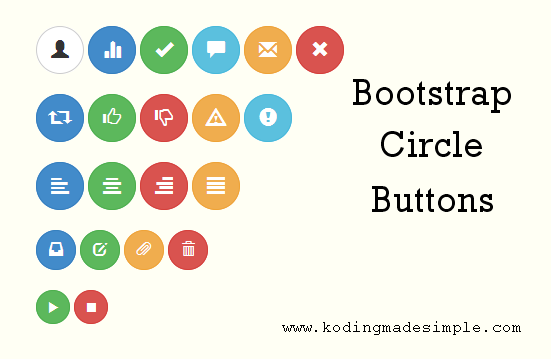
Hi, here comes another nice addition to our twitter bootstrap tutorials series. This post discusses about customizing/extending bootstrap features and let you create circle/round buttons with bootstrap 3 css. Bootstrap provides seven different button classes of varying color and they are rounded rectangle by default. These button classes provide an excellent base structure for designing your own styles. You will be amazed to see how very little css code could create beautiful circle buttons.

twitter-bootstrap-circle-round-buttons

How to Create Circle Buttons in Bootstrap

Creating circle buttons with bootstrap is lot easier than you think. A few css tweaks and you are done. As an example let’s design some round buttons with icons. For icons, we’ll use glyphicons that comes with bootstrap. These glyphicons are high quality scalable font icons and you can pretty much use them with small to larger size buttons without losing its quality.

In Bootstrap you are allowed to create buttons in four different sizes with its classes ‘.btn-lg’ (large), ‘.btn-sm’ (small), ‘.btn-xs’ (extra small) and default size without using any specific class.

Now let us create a separate button class ‘.btn-round’ for round buttons. By this way you can also make use of the default bootstrap rounded corner buttons. To make the buttons a perfect circle we should set it’s width and height equal and ‘border-radius’ to 50% to get complete roundness around the edges.

Don’t Miss: How to Create Carousel Image Slider in Twitter Bootstrap

CSS Styles for Bootstrap Circle Buttons

.btn-round {
    width: 40px;
    height: 40px;
    border-radius: 50%;
}

.btn-round.btn-lg {
    width: 48px;
    height: 48px;
}

.btn-round.btn-sm {
    width: 34px;
    height: 34px;
}

.btn-round.btn-xs {
    width: 24px;
    height: 24px;
}

Having the css in place let’s write the html markup to create bootstrap circle buttons.

HTML Markup for Bootstrap Circle Buttons

<!-- large buttons -->
<button type="button" class="btn btn-default btn-lg btn-round"><span class="glyphicon glyphicon-retweet"></span></button>
<button type="button" class="btn btn-primary btn-lg btn-round"><span class="glyphicon glyphicon-share"></span></button>
<button type="button" class="btn btn-success btn-lg btn-round"><span class="glyphicon glyphicon-thumbs-up"></span></button>
<button type="button" class="btn btn-danger btn-lg btn-round"><span class="glyphicon glyphicon-thumbs-down"></span></button>
<button type="button" class="btn btn-info btn-lg btn-round"><span class="glyphicon glyphicon-zoom-in"></span></button>
<button type="button" class="btn btn-warning btn-lg btn-round"><span class="glyphicon glyphicon-zoom-out"></span></button>

<!-- default size buttons -->
<button type="button" class="btn btn-default btn-round"><span class="glyphicon glyphicon-music"></span></button>
<button type="button" class="btn btn-primary btn-round"><span class="glyphicon glyphicon-fast-backward"></span></button>
<button type="button" class="btn btn-success btn-round"><span class="glyphicon glyphicon-play"></span></button>
<button type="button" class="btn btn-info btn-round"><span class="glyphicon glyphicon-stop"></span></button>
<button type="button" class="btn btn-warning btn-round"><span class="glyphicon glyphicon-fast-forward"></span></button>
<button type="button" class="btn btn-danger btn-round"><span class="glyphicon glyphicon-volume-off"></span></button>

<!-- small buttons -->
<button type="button" class="btn btn-default btn-sm btn-round"><span class="glyphicon glyphicon-paperclip"></span></button>
<button type="button" class="btn btn-primary btn-sm btn-round"><span class="glyphicon glyphicon-align-left"></span></button>
<button type="button" class="btn btn-success btn-sm btn-round"><span class="glyphicon glyphicon-align-center"></span></button>
<button type="button" class="btn btn-info btn-sm btn-round"><span class="glyphicon glyphicon-align-right"></span></button>
<button type="button" class="btn btn-warning btn-sm btn-round"><span class="glyphicon glyphicon-align-justify"></span></button>
<button type="button" class="btn btn-danger btn-sm btn-round"><span class="glyphicon glyphicon-trash"></span></button>

<!-- extra small buttons -->
<button type="button" class="btn btn-default btn-xs btn-round"><span class="glyphicon glyphicon-user"></span></button>
<button type="button" class="btn btn-primary btn-xs btn-round"><span class="glyphicon glyphicon-stats"></span></button>
<button type="button" class="btn btn-success btn-xs btn-round"><span class="glyphicon glyphicon-ok"></span></button>
<button type="button" class="btn btn-info btn-xs btn-round"><span class="glyphicon glyphicon-comment"></span></button>
<button type="button" class="btn btn-warning btn-xs btn-round"><span class="glyphicon glyphicon-envelope"></span></button>
<button type="button" class="btn btn-danger btn-xs btn-round"><span class="glyphicon glyphicon-remove"></span></button>

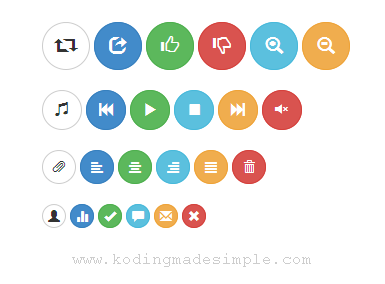
The above markup will produce nice set of round buttons with icons.

twitter-bootstrap-3-circle-round-buttons-examples

As I wish to stick to the basic button styles of bootstrap I didn’t bothered to change their behavior such as color, background or hover styles. But you can if you want. Go ahead. Don’t limit yourself with the icons given here. Glyphicons contains more than 250 icons and you can check here for the complete list of glyphicons available in bootstrap.

Read Also:

If you want to use text with icons in bootstrap buttons then check out this bootstrap tutorial.

Twitter Bootstrap Modal Form Example - Creating Contact Form

On 12/08/2017 1 Comment so far

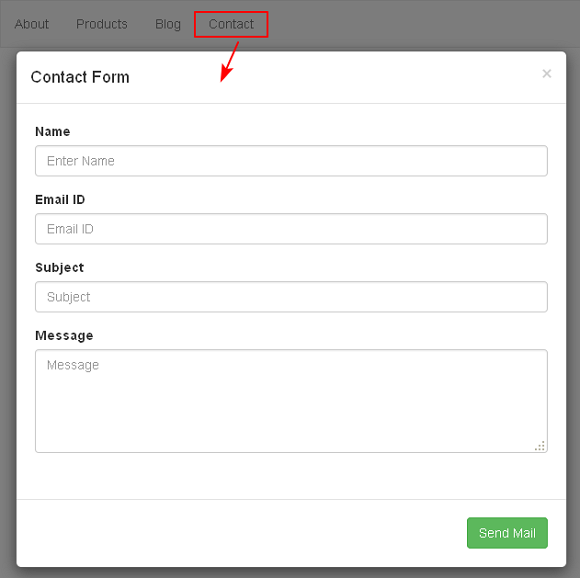
One of our earlier twitter bootstrap tutorials discussed about creating a working contact form in Bootstrap and PHP. Now let's see an example of building modal contact form in bootstrap. These types of popup modal forms will be very useful if you don't want to have separate pages for the forms like login, user signup or contact form. By default the modal dialogs are hidden, and only shown when triggered by a handle like anchor link or buttons. However these modal dialogs are not limited to forms but also can hold plain text or other html contents like image sliders, alerts, videos etc.

twitter-bootstrap-3-modal-form-example

Twitter Bootstrap Modal Form Example

Twitter Bootstrap provides many helpful plug-ins and 'modal' plug-in is one among them which can be used to create responsive modal dialogs in no time. Typically the bootstrap's modal window comprises of three sections,

  • Modal Header - which contains the heading and exit button.
  • Modal Body - which contains the contents to show up in the modal box.
  • Modal Footer - which contains some notification text or action buttons like submit, close etc.

Don't Miss: How to Add Social Media Bar to Bootstrap Navigation Menu

The bootstrap modal dialog has the following structure:

<div class="modal">
    <div class="modal-dialog">
        <div class="modal-content">
            <div class="modal-header">
                <!-- header section -->
            </div>
            <div class="modal-body">
                <!-- body content -->
            </div>
            <div class="modal-footer">
                <!-- footer section -->
            </div>
        </div>
    </div>
</div>

Building Modal Contact Form in Bootstrap

Now let us see how to place contact form in a modal box. Creating Modal form is no difference, as we have to write the markup for the form as usual and place it inside the modal body section.

But as previously said all the modals should be triggered with some handle and we have to create the handle first. So we write the markup for bootstrap navigation menu with 'contact' menu link, which upon triggered should invoke the modal popup form.

<!-- Navigation Menu -->
<nav class="navbar navbar-default" role="navigation">
    <div class="container-fluid">
        <div class="navbar-header">
            <button type="button" class="navbar-toggle" data-toggle="collapse" data-target="#navbar1">
                <span class="sr-only">Toggle navigation</span>
                <span class="icon-bar"></span>
                <span class="icon-bar"></span>
                <span class="icon-bar"></span>
            </button>
            <a class="navbar-brand" href="#">CHITCHAT</a>
        </div>
        <div class="collapse navbar-collapse" id="navbar1">
            <ul class="nav navbar-nav">
                <li class="active"><a href="#">Home</a></li>
                <li><a href="#">About</a></li>
                <li><a href="#">Products</a></li>
                <li><a href="#">Blog</a></li>
                <li><a href="#" data-toggle="modal" data-target="#myModal">Contact</a></li>
            </ul>
        </div>
    </div>
</nav>

As you can see we have used two data attributes for the 'contact' menu item. The data attribute data-toggle="modal" will activate the modal window without using java script and data-target="#myModal" will specify which modal element should be triggered. Here in this case the modal element would be the one with id 'myModal'.

Note: Modal overlapping is not supported so make sure to show only one window at a time. Opening multiple modal dialogs at the same time requires some custom coding.

Next we write the markup for the actual modal form. You can place this code anywhere inside the body section but would be appropriate to place it above the closing body element (</body>) to keep from messing up with the rest of the html code.

<!-- modal contact form -->
<div id="myModal" class="modal fade" aria-labelledby="myModalLabel" aria-hidden="true" tabindex="-1" role="dialog">
    <div class="modal-dialog">
        <div class="modal-content">
            <div class="modal-header">
                <button type="button" class="close" data-dismiss="modal" aria-hidden="true">×</button>
                <h4 class="modal-title">Contact Form</h4>
            </div>
            <div class="modal-body" id="myModalBody">
                <form id="contactform" role="form" >
                    <div class="form-group">
                        <label for="name">Name</label>
                        <input type="text" id="name" placeholder="Enter Name" class="form-control"/>
                    </div>
                    <div class="form-group">
                        <label for="emailid">Email ID</label>
                        <input type="text" id="emailid" placeholder="Email ID"  class="form-control" />
                    </div>
                    <div class="form-group">
                        <label for="subject">Subject</label>
                        <input type="text" id="subject" placeholder="Subject" class="form-control" />
                    </div>
                    <div class="form-group">
                        <label for="message">Message</label>
                        <textarea id="message" rows="4" placeholder="Message" class="form-control"></textarea>
                    </div>
                </form>
            </div>
            <div class="modal-footer">
                <button type="submit" class="btn btn-success">Send Mail</button>
            </div>
        </div>
    </div>
</div>

Now a nice looking contact modal form pops up on clicking the 'contact' menu link like this,

twitter-bootstrap-modal-contact-form-example

Adding the css class .fade will add fade in and out animation effect when the modal window shows and hides.

The attribute data-dismiss="modal" will add an exit button at the top right corner of the modal window.

Also the attribute role="dialog" makes the modal accessible and aria-labelledby="myModalLabel" refers the modal box title.

Read Also:

And that explains creating modal forms in twitter bootstrap framework.

jQuery Password Strength Meter for Twitter Bootstrap Example

On 12/08/2017 1 Comment so far

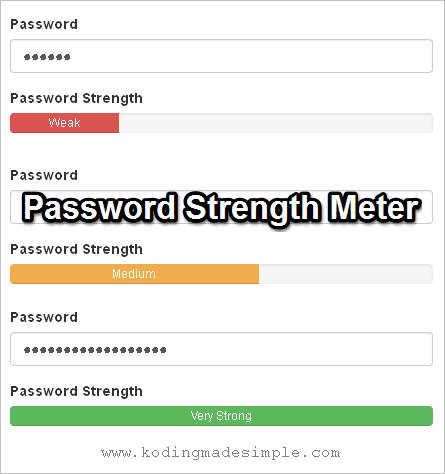
Hi, I'm back with another useful and interesting tutorial that talks about implementing jQuery Password Strength Meter to Twitter Bootstrap Framework. Guiding users to choose complex passwords and let them know the strength of their selected passwords during user registration process (signup) is a good and necessary practice to include in websites. Having password strength checker not only improves overall site security but will also gain users trust. Here we'll see how to incorporate it on websites built over twitter bootstrap css framework.

jquery-password-strength-meter-twitter-bootstrap-example

Password Strength Meter for Twitter Bootstrap

In order to implement password strength meter to bootstrap, we need a jquery plug-in called 'Pwstrength' which attach a nicely animated progress bar to the password input field and show up a real-time password strength checker. This jquery plug-in heavily relies on bootstrap framework and it requires it for the plugin to work properly.

Implementing Password Strength Meter

To create a working example first let's download the jquery plug-in. Go to this Github repository and download the plugin. Extract the zip file and move the 'pwstrength.js' file to your working folder.

Now create a file named 'index.html' and load bootstrap, jquery and pwstrength plug-in files like this.

<html>
    <head>
    <meta charset="utf-8"> 
    <meta name="viewport" content="width=device-width, initial-scale=1.0">
    <title>jQuery Password Strength Meter Example</title>
    <link href="path/to/bootstrap.css" rel="stylesheet" type="text/css" />
</head>
<body>

    ...
    <script src="path/to/jquery-1.10.2.js" type="text/javascript"></script>
    <script src="path/to/bootstrap.js" type="text/javascript"></script>
    <script src="path/to/pwstrength.js" type="text/javascript"></script>
</body>
</html>

Next create a html form with password field and a container (<div> element) to hold the progress bar.

<div class="container">
<div class="row" id="pwd-container">
    <div class="col-md-6 col-md-offset-3">
        <div class="panel panel-default">
            <div class="panel-heading">
                <h4 class="text-center">jQuery Password Strength Meter Example</h4>
            </div>
            <div class="panel-body">
                <form role="form" method="post">
                    <div class="form-group">
                        <label for="password">Password</label>
                        <input class="form-control" id="password" name="password" placeholder="Enter Password" type="password" />
                    </div>

                    <div class="form-group">
                        <label>Password Strength</label>
                        <div class="progress_meter"></div>
                    </div>
                </form>
            </div>
        </div>
    </div>
</div>
</div>

Now having the form in place we have to attach password strength meter to the password field. To do it, add the below jquery script to 'index.html' file.

<script type="text/javascript">
    $(document).ready(function () {
    "use strict";
    var options = {};
    options.ui = {
        container: "#pwd-container",
        showVerdictsInsideProgressBar: true,
        viewports: {
            progress: ".progress_meter"
        }
    };
    $('#password').pwstrength(options);
});
</script>

The method pwstrength() will attach a progress meter to the password field with css selector #password. You can invoke multiple instances of strength checker in a same page. For that you can use $(':password').pwstrength(options); statement. This will attach the progress meter to all the password fields.

The option showVerdictsInsideProgressBar when set as TRUE will display the verdicts such as 'Weak', 'Normal', 'Medium', 'Strong', 'Very Strong' based upon the keyed-in password inside the progress bar.

Complete Code for index.html

<html>
    <head>
    <meta charset="utf-8"> 
    <meta name="viewport" content="width=device-width, initial-scale=1.0">
    <title>jQuery Password Strength Meter Example</title>
    <link href="path/to/bootstrap.css" rel="stylesheet" type="text/css" />
</head>
<body>
    <div class="container">
    <div class="row" id="pwd-container">
        <div class="col-md-6 col-md-offset-3">
            <div class="panel panel-default">
                <div class="panel-heading">
                    <h4 class="text-center">jQuery Password Strength Meter Example</h4>
                </div>
                <div class="panel-body">
                    <form role="form" method="post">
                        <div class="form-group">
                            <label for="password">Password</label>
                            <input class="form-control" id="password" name="password" placeholder="Enter Password" type="password" />
                        </div>

                        <div class="form-group">
                            <label>Password Strength</label>
                            <div class="progress_meter"></div>
                        </div>
                    </form>
                </div>
            </div>
        </div>
    </div>
    </div>
    <script src="path/to/jquery-1.10.2.js" type="text/javascript"></script>
    <script src="path/to/bootstrap.js" type="text/javascript"></script>
    <script src="path/to/pwstrength.js" type="text/javascript"></script>
    <script type="text/javascript">
    $(document).ready(function () {
        "use strict";
        var options = {};
        options.ui = {
            container: "#pwd-container",
            showVerdictsInsideProgressBar: true,
            viewports: {
                progress: ".progress_meter"
            }
        };
        $('#password').pwstrength(options);
    });
    </script>
</body>
</html>

That's it. Now run 'index.html' file in browser and you can see a form like this.

jquery-password-strength-meter-twitter-bootstrap
Bootstrap Password Strength Meter Example

Just type in your password and the progress bar indicates its strength with different verdicts and colors. Check here for customizing the rule sets and options of the plug-in.

Read Also:

I hope now you have better understanding of implementing jquery password strength meter in twitter bootstrap.

Contact Form

Name

Email *

Message *