Are you looking for the best laptop for writers? Then here's our review for Top 10 Best Laptops for Writers and Writing 2018. No matter if you are a professional writer, seasonal or a novice there's a laptop for everyone's budget here. The laptops we have recommended are for people who use them mainly for writing purpose and made sure they got spacious backlit keyboard, eye friendly display, no overheating issues and light weight but sturdy chassis.
Best Writers Laptop Configuration:
Are there any special laptops made for writing? Well! No. But a laptop specifically used for writing must have certain features that would make a writer's life easier. Here we go.
Keyboard: Backlit Keyboard (to write in low-light conditions) with spacious palm rest.
Storage: At least 128GB SSD (SSD is faster and produce less heat. A must for professional writers who writes all day long)
RAM: 6 to 8GB RAM
Processor: Good Quad core processor like Intel i3
Portable: Light-weight chassis recommended if writers travel a lot.
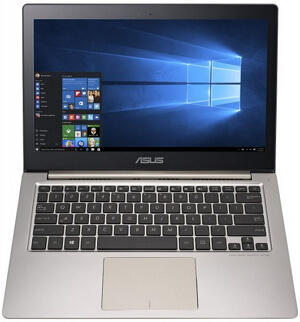
ASUS ZenBook UX303UA is our top pick in Top 10 Laptops for Writers sporting the right combination of power, elegance & portability. Priced under $800, the ultrabook comes with high-end hardware's and boots and loads documents with lightning speed and suffers no heating problem.
The laptop comes preinstalled with Windows 10 and sports Intel i5 processor coupled with 8GB RAM, abundant 256GB SSD storage & wide spaced keypad. Plus the high definition 13.3 inch screen makes it highly portable. Given the fact it weighs just 3 pounds you can stash it in your backpack and take it on go.
Besides its 7 hours of battery backup is another huge plus. There is no overheating with zenbook as it uses SSD for storage which is relatively fast and prone to less heat. Overall it's a great investment for serious writers who write for living.
Acer Aspire E15 is the best cheap laptop for writers in 2018 with wide 15.6 inch Full HD screen and full-sized keyboard along with comfortable palm rest. In fact it is one of the best laptop keyboard for writers. It includes abundant SSD storage of 256GB GB to store all your writings and features latest Intel Core i5 processor, 8GB RAM, great battery backup and of all windows 10 OS.
If you are a novoice or a seasonal writer then there's no point in spending $1000 for a laptop. A decent mid-range device will do. At the price tag of just $550, Acer Aspire E15 is the perfect laptop for writers on budget.
It sports a good NVIDIA GPU so you can use it for gaming if you don't feel like writing all day. Another good reason to go for this gem:)
HP 15-AY011NR is another good writing laptop you can get for $450. Probably this is the most affordable laptop with good specs tailored for a writer's needs. For such a budget device HP 15-AY011NR includes great hardware like 8GB RAM, Core i5 Processor and surprisingly 1TB of hard disk space.
It offers 15.6 inch wide FHD display and spaciously arranged keyboard with large palm rest area and comes pre-installed with Windows 10 OS to let you start work immediately after purchase.
The laptop has excellent battery life of seven hours and suitable for outdoor writing. Highly recommended for beginners & seasonal writers.
MacBook Pro with Retina Display is the Perfect Laptop for Professional Writers. Writers who are used to sit and write for hours starring at the laptop screen might suffer from eye irritation, red or puffy eyes. Having a laptop like MacBook with Retina display will keep away eye strain.
Plus the device is highly portable being very thin and light-weight and fits in your smallest backpack easily. It comes with high-end features like 8GB RAM, 128GB storage space, 13.3 inch screen with retina display and very long battery life. Plus the keypad has comfortable palm rest space and backlit keys to let you write in low-light conditions.
Overheating is never an issue with MacBook. A high-end product recommended for serious writers.
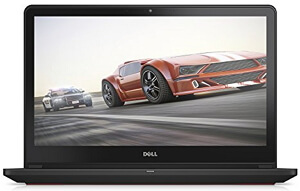
Dell Inspiron is another great laptop for professional writers. Professional writers do need a sturdy laptop with wide-screen, full-sized backlit keyboard to write on low-light conditions, ample storage space and good hardware. Dell Inspiron meets up with all these challenges without trouble and would be a great buy under $1000.
Provided the specs are latest with Windows 10 OS, powerful Intel i7 processor along with 8GB RAM, Touch-enabled 15.6 inch FHD Screen, abundant 1TB storage and backlit full-sized keyboard with comfortable palm area. The laptop is worth every penny you spend and has an excellent battery life of more than seven hours. Overall Dell Inspiron would be very good companion in your writing career.
An expensive high-end laptop from Microsoft and extremely powerful with stunning 12 hours of battery backup, high definition display and comfortable backlit keyboard to write on dim light conditions. Writing is joy with Surface Book and if you are a professional writer who writes for living, this would be the best investment you make for your career.
The product comes in six different versions and for full-time writers we would recommend a hardware combination of Intel i5 processor, 8GB RAM, 256GB SSD Storage. Videos & games are highly enjoyable in Surface Book's high definition screen. So if you are fed up with writing all day you can treat yourself for some entertainment. Highly recommended for professional writers.
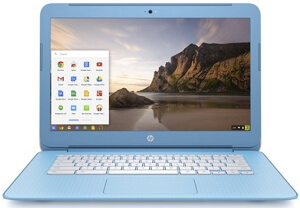
At 3.4 lbs HP Chrome 14 is a great laptop for writers on go and journalists on budget. It costs you less than $300 and has remarkable battery backup of 8 hours in one go. Plus access to Google apps and the ability to connect with various Wi-Fi hot spots are other great additions helpful for people who work as team and share information with other members of the team.
Slim and Light-weight this Chromebook from Samsung runs on Chrome operating system and comes with very useful software packs. The software's like AirDroid Premium, Little Bridge & Wunderlist Pro helps you to manage all your android devices on the web and let you synchronize & transfer files with others on your team. The ergonomic well-spaced keyboard allows you to type fast. Given the fact there is no hard-disk you have to rely on cloud storages.
HP Pavilion 13 is a touch-enabled hybrid laptop that duals as a Laptop & Tablet and a perfect fit for Journalists and Writers. It is highly portable with 13.3 inch high definition touch screen yet has spaciously formed keypad with comfortable palm rest and would be a great choice for writing.
It comes with windows 10 OS and powered with Intel i3 processor coupled with 8 GB RAM, 126GB SSD disk and 7 hours of battery backup. It makes for a great companion on your travel and can be bought for under $600.
Yoga 3 pro is another good mid-range laptop for writers from Lenovo brand. The laptop runs on windows 10 operating system and comfortable for writing with well-spaced backlit keyboard and 13.3-inch QHD glossy multi-touch display.
It packs powerful Intel Core Processor, 8GB RAM, and huge 256GB SSD to store all your files. With 13.3 inch it's very portable and if you like to write on outdoors then it easily sustains for up to 9 hours without power. There is no doubt Yoga 3 Pro comes with all good features a writer needs in a laptop and would be another great choice for writing.
That's makes our recommendations for top 10 best laptops for writers. If you are a novice or a seasonal writer there is no point investing $1000 in a laptop. Budget or mid-range laptops from the list will do. On the other hand professional writers need powerful machines to cope up with their work all day. For them a high-end laptop would be the wise choice. However all of the above recommended laptops are great for writing with well-spaced backlit keyboard, comfortable palm rest, high definition screen and optimal performance.
Here are the best kali linux compatible wireless adapters and usb dongles for 2020. Kali Linux is a Linux distribution mainly used for Penetration Testing, accessing N/W Security & Ethical Hacking. The process of choosing a wireless adapter or usb dongle to work with Kali Linux is not an easy task. It's just because the Operating system doesn't support all kinds of wifi adapters.
For example Pentesting requires a card to go into monitor mode and do packet injection which all cards can't do it. The Card's chipset and drivers is what determines if an adapter is compatible with kali or not.
Below I have listed out the most popular chipsets for Kali linux and Wireless adapters compatible with them. They work well for Penetration testing too.
Alfa AWUS036NHA is a best wifi adapter for pentesting. For penetration testing, Atheros AR9271 is a good chipset and you can go for Alfa AWUS036NHA card if you plan to run Kali as VM. Just get the job done without hassle.
Compatible with any 802.11b, 802.11g or 802.11n routers using 2.4Ghz band
Supports multiple input multiple output
High speed transfer TX data rate of up to 150 mbps
Includes 4" detachable antenna of 5 dbi which can be upgraded up to 9 dbi.
Works with 64/128-bit wep, wpa, wpa2, tkip, aes security protocols.
Supports Windows 2000, XP 32/64, vista 32/64 & Windows 7 Platform. So compatible with Kali Linux running as VM on these hosts.
Another great USB Desktop Wireless Adapter for cheapest price. TP-Link TL-WN722N uses AR9271 Chipset and has great range of up to 150Mbps. The card is easy to set up and works perfectly with Kali Linux.
Supports Wireless speed of up to 150Mbps
Works both on Infrastructure and Ad-Hoc Mode
Includes a detachable 4dbi omni directional antenna
Supports WPS & USB 2.0
Compatible with Windows XP, Windows Vista, Windows 7, 8, 8.1 platforms
One of the best wireless dongle for pentesting. This 2 Watt 802.11n compatible Wi-fi dongle is quite powerful and supports Ralink RT3070 Chipset. It has very good range and perfect for packet monitoring.
Compatible with any 2.4GHz routers of 802.11n, 802.11b/g/n wireless standards
Includes removable 4" - 5 dBi antenna and can be be upgraded up to 9dBi
This Wi-Fi Dongle is similar to Alfa AWUSO36NH in specs and covers long range. Alfa AWUS036NEH is exceptional for penetration testing and is good at packet injection and monitoring.
Works well with any 802.11b/g and 'N' routers
Includes removable 4" 5dBi antenna (upgradable up to 9dBi)
Panda 300mbps wireless n usb adapter is very reasonably priced and works with 802.11g/n standard and offers a data speed of up to 300 Mbps. It is exceptionally good considering the price but make sure to download and install the latest driver (alone) for Windows 7 and leave the rest of the setup to Windows itself.
Compatible with any 802.11g or 802.11n 2.4Ghz wireless routers
Wireless speed of up to 300Mbps
Works with both infrastructure and ad-hoc modes
Security protocol compliant: 64/128bit WEP, WPA, WPA2, 802.1x and 802.11i, Cisco CCS V1.0, 2.0 and 3.0
Supports 32/64-bit Windows 8/7/Vista, Mac OS 10.4/10.5/10.6/10.7/10.8/10.9 and latest version of 32/64-bit Mint, Ubuntu, Fedora, openSUSE, etc.
What Makes a Wireless Adapter Compatible with Kali?
Kali is a popular Linux Distro commonly used by security and penetrating testing professionals. Not all wireless adapters are made to work with Kali Linux. Only the drivers and chipsets decides if they are compatibile with the OS or not.
In addition, if you run it as a VM, the USB adapter must also be compatible with the host operating system.
Any of the above recommended devices will be good for pentesting, but you are called to decide which one is right for your configuration.
Long-range adapters with big dBi antenna are great for distance but not exactly compact. On the other hand smaller ones with built-in antenna are good for staying low profile.
Over To You:
So these are the best wireless adapters and usb dongles for kali linux. Though all these adapters works well with Kali, just make sure if it is the right one for your environment. For example if you wish to run Kali on Virtual box in Windows 7 host then make sure the card is compatible with Windows 7 OS. Also you must be cautious about the coverage range. Antenna with bigger dBi would be better for longer range. This helps you avoid future trouble.
If you find this useful please share it with others to give them good suggestion.
Slow Internet connection sucks! Even when you have reliable ISP, good modem, router and everything, a bad wireless adapter will spoil the party. No one wants to compromise the Internet speed and connectivity in the middle of work or gaming. A good quality wifi adapter will drastically improve the INTERNET performance and give you peace of mind. Moreover, if Wi-Fi network is shared among household members, then a Best Desktop Wireless Adapter goes a long way providing fast and secure internet connection.
If you are looking to buy a USB Wireless Adapter then make sure the adapter easily talks to the router and works best for desktop PC, laptop and tablet. Knowing a few things about Wi-Fi will help you pick the right wireless adapter for your needs.
What Is A USB Wireless Adapter & How Does It Work?
A USB wireless adapter is a small device that quickly sets up wireless connectivity to your desktop or laptop via the router. It is plugged into the USB port of the computer and adds up Wi-Fi ability to non Wi-Fi computer.
The Wireless Adapters are also called as Wi-Fi dongles and come in all shape and size. Also they vary in the types of protocol they use for transferring wireless signals.
These days Desktops and Laptops come with built-in Wi-Fi cards but it's not the case with older computers. On the other hand, you might want to upgrade your laptop's wifi or fix a broken wireless card. In either case, a good external USB wireless adapter will make your computer wifi ready.
Top 10 USB Wireless Adapters in 2017 Reviews
1. NETGEAR AC1200 WiFi USB Adapter (A6210)
Netgear AC1200 USB WiFi Adapter is a high-end dongle with excellent wifi performance. The adapter works on dual band supporting 2.4GHz and 5Ghz wireless setup.
It works with USB 3.0 and delivers high data rates with the latest 802.11ac protocol. And the high-gain antennas give good distance coverage. No bigger than a flash drive the adapter is compact-looking and snugly fits into the computer's USB without blocking adjacent ports. It comes with NETGEAR genie for easy installation and supports all Windows OS versions. There is also a desktop dock for flexible placement of the adapter.
2. ASUS USB-AC68 Dual-Band AC1900 with Included Cradle
If you are looking for a high-speed wireless adapter then ASUS USB-AC68 dual-band dongle is your best option. It uses the newest technology chipset Realtek RTL8814AU and the fastest wifi dongle in the market.
It comes with two foldable external antennas to cover large distance and it does. There is also an USB cradle which you can extend when required.
The dual band dongle has max speed of up to 1900 Mbps which is split among 2.4 GHz and 5 GHz range. 600Mbps transfer rate at 2.4GHz and 1300Mbps at 5GHz frequency.
This USB Wifi adapter has impressive speed and wireless connectivity. But note that this is not a budget device. If you have specific need for fastest wifi then go for ASUS USB-AC68 without second thought. There's no support Linux OS so if you look for one to use in Linux go for other recommendations in this list.
802.11ac Dual band USB Adapter
Robust 3x4 MIMO Antenna design
Dual 3-position foldable external antennas
Up to 600 Mbps speed on 2.4GHz band, 1300 Mbps on 5GHz band
TP-Link Archer T2UH USB Wireless Adapter is an entry-level 802.11ac adapter suitable for regular day-to-day use. The adapter works on dual band so it will pick up signals on both 2.4GHz and 5GHz frequency.
The dongle's speed and wireless connectivity is good for personal use. It comes with external antenna which you can twist and tweak to gain better wifi signals. Also there is a 3-foot usb cable that let you place the adapter near the router for maximum throughput.
TP-Link Archer T2UH USB Adapter utilizes USB 2.0 and has speed cap at 480Mbps which is the only downside to it. Even then this rate is not at all less for home.
It supports Windows and Mac machines and overall a decent adapter from a reputable brand.
High-gain external antenna for long distance
WiFi speed up to 600Mbps with simultaneous 5GHz and 2.4GHz bands
WPS button for secured encryption
Includes 3 Feet USB cable for adapter placement
Compatible with Windows 8.1, 8, 7, XP, Linux, Mac OS X 10.7-10.10
BrosTrend AC1200 USB Wi-Fi Adapter is an 802.11AC Dual Band dongle that works on both 2.4GHz and 5GHz frequency range. It supports USB 3.0 and works at a data rate of 867 Mbps at 5GHz and 300 Mbps at 2.4GHz band.
Being just three inches long, the adapter is extremely portable has cap for storage. It snugly fits to the desktop or laptop without taking up much space.
The device is plug and play and is compatible with Windows 10 OS and it's earlier versions.
In general, BrosTrend AC1200 is a great fit for all networks and the protocol 802.11ac is backward compatible. In addition, although designed to work with USB 3.0, it is compatible with USB 2.0 and 1.0.
5. Alfa Long-Range Dual Band AC1200 Wireless Adapter
The Alfa AC1200 is a dual band long-range adapter with support for the latest 802.11ac protocol. It has very good antennas for long distance coverage and there is no problem working on the 5GHz frequency.
This dongle is not exactly portable, but it has good wifi connectivity and speed even at distance. It's a USB 3.0 adapter and achieves excellent data transfer rates at 5GHz range. Unless you do not have USB 3.0 port on your computer there will be no bottleneck in speed.
So if you need a USB adapter that works long distance and supports the new 5GHz band, Alfa AC1200 is the best option.
Panda's Wireless-N Network Adapter is a low-cost solution for upgrading your desktop / laptop wifi. It operates on the 2.4GHz network and has a maximum speed of up to 300Mbps.
It is an 802.11n dongle so speed is optimum but has wide range and works well from long distance. There is also a screw in antenna at the back of the device for good range.
The adapter is backward compatible with 802.11g 2.4GHz network and does not work on 5GHz band. It supports Windows (XP, Vista, 7, 8, 8.1 and 10), MAC and Linux OS.
Operates on 802.11n and 802.11g 2.4GHz wireless networks
WPS button wireless setup
Maximum speed up to 300 Mbps
Low power consumption in laptop/portable devices
64b/128bit WEP, WPA and WPA2 (TKIP+AES)
Compatible with 32/64 bit Windows XP, Vista, 7, 8, 8.1, 10, Mac OS Mint, Ubuntu, openSUSE, etc.
NET-DYN USB WiFi Adapter is a fast, easy and inexpensive solution for adding wireless connectivity to your PC or fixing your laptop's broken Wi-Fi. The mini adapter comes with internal antennas and remains low profile connected to the computer's USB. And the good thing is that it does not block the nearby ports so you can connect it directly to the computer without the need for an extension cable.
It is a Wireless-N USB 2.0 adapter so the speed is good enough for personal use. The dongle operates in the 2.4GHz range and has maximum data rate of up to 300Mbps.
Overall it's a cheap and reliable USB Wifi adapter and works great on Windows 10 and Mac and earlier versions of Windows like Windows 8.1, 8, 7, Vista and XP.
802.11n / b / g Wi-Fi adapter and works in 2.4 Frequency range
Compatible with Windows 10, 8.1, 8, 7, Vista, XP, 2000 and Mac 10.9 and 10.10
Compatible with all WLAN routers (WPA / WPA2 / WEP)
Dodocool is another very low cost dual band 802.11ac adapter. Since it is a dual-band dongle it fits on any network.
Although it supports the newest 802.11ac wifi protocol, it is backward compatible with older wireless networks such as Wireless-n/g networks.
The device is small in size and fits easily on to the laptops USB port without getting in your way. As for setup, it works well with Windows 10 plug-and-play - and also compatible with previous versions like Windows 8.1, 8, 7 etc.
Since Dodocool AC600 is a mini adapter it lacks big antennas that come with large wifi adapters. So that limits the adapter to short range.
Overall the USB wireless adapter is easy to setup wifi to your computer and get the job done on budget.
802.11ac Compatible Dual Band AC 600 Adapter
Support for both 2.4GHz and 5GHz bands
Up to 433 Mbps speed at 5GHz & 150 Mbps at 2.4GHz
Plug and play easy wifi setup
Works with 802.11 ac/a/b/g/n routers
Compatible with Windows XP, Vista, 7, 8, 8.1, 10, Mac OS X
OURLiNK 802.11ac adapter from Glam Hobby is a very small and low-cost dongle that works on 2.4GHz and 5Gz wireless networks. It has a simple and easy configuration and connects your Windows 10 machine to wifi in a matter of seconds.
It is a USB 3.0 adapter and easily reaches 100Mbps speed which is great for such a small device. It also supports Mac OS and earlier Windows versions like XP, Vista, 7, 8 and 8.1.
The USB adapter's connection is impressive and covers a good range from 25 to 30 feet away. Overall, it is ideal for online gaming and no-buffer HD streaming.
802.11ac 1200 Mbps Wireless Dual-band adapter
Speed up to 867Mbps on 5GHz + 300Mbps on 2.4GHz N/w
Superspeed USB 3.0 Port Interface
Innovative compact body design
Compatible with Windows 10, 8.1, 8, 7, XP and Mac OS
10. TP-Link Archer T1U Wireless Nano USB Adapter (AC450)
The TP-LINK Archer T1U is another good entry-level Wifi USB adapter and works with the 802.11ac standard.
The adapter is small and discreet so that you can connect it to the PC and leave it there. It only works on the newer 5 GHz range and there's no support for the old 2.4 GHz. So if distance is a problem, go for any of the dual-band adapters that are given in this list.
As for compatibility, Archer T1U works with most of the operating system, including windows 10. In addition the dongle uses USB 2.0 so speed would be optimal and good for home/personal use only.
Supports 802.11ac/a/n wireless standard
Works only on the new 5GHz band
Up to 433 Mbps data transfer rates
Encryption standards: WEP, WPA/WPA2, and WPA-PSK/WPA2-PSK
Compatible with Windows (XP, Vista, 7, 8, 8.1, 10), Linux & Mac OS X
While some of the USB Wifi adapters are small and discreet, most of the powerful dongles will be slightly bigger and can block the adjacent ports of your computer. Plus you may also need to position the adapters in the direction of router for better signal. There is a simple fix for this problem. Using an USB extension cord will help you keep wireless adapters far away from the computer/laptop and in the direction of router. And the near by ports will not be blocked.
Best USB Wireless Adapters for Gaming
1. TP-Link AC1200 Wireless Dual Band USB Adapter (Archer T4U V1)
TP-Link is a reliable brand among wireless equipments. The Archer T4U V1 is an 802.11ac dual band adapter and supports any type of network.
The dongle offers ultrafast wireless speeds up to 1200 Mbps combining both 2.4GHz and 5GHz frequencies. It gives data rates of up to 867Mbps at 5GHz and 300Mbps at 2.4GHz bands.
The USB adapter works on USB 3.0 and supports SoftAP so you can use it as a Wi-Fi hotspot and share the Internet connection of your PC among other devices. If you live in a crowded city then it is recommended to use 5GHz to enjoy enhanced online gaming.
Another good thing is it comes with 1 meter USB extension cable so the nearby ports will not be blocked when connected to the computer or laptop.
Delivers ultra-fast 1200 Mbps speed With 802.11ac standard
Alfa USB Wifi adapter is one of the best long-range dongle in the market and supports the latest 802.11ac protocol. The adapter is backward compatible and works on older wireless protocols such as 802.11n/g/b/a.
It is not a small device but has excellent range. There are two 5dBi removable antennas for distance and has the data transfer speed of up to 867 Mbps on 5GHz frequency.
The adapter is dual-band and works on both 2.4GHz and 5GHz band. It supports all Operating systems such as Windows (10/8/7/Vista/XP), Mac & Linux.
If you need a high-speed wifi adapter that works from distance for online gaming then Alfa AC1200 is your best choice.
Dual-Band 2.4GHz/5GHz USB Wireless Adapter
Delivers speed up to 300Mbps on Wireless-N & 867 Mbps on Wireless-AC
The Linksys WUSB6300 USB wireless adapter works on dual band and supports the latest standard Wireless AC. It is ideal for connecting PC or laptop to high-speed 802.11ac networks.
It is a Wireless-AC dongle but also backward compatible with the Wireless-N standard. It works on USB 3.0 for fast performance and offers 867 Mbps speed in 5GHz band and a speed of 300 Mbps in 2.4GHz band combining a total theoretical speed of 1200 Mbps. You can enjoy lag-free online gaming via 5GHz network.
For secured wifi it supports 128 bit WEP, WPA and WPA2 encryption. The adapter is compatible with Windows 10 OS and earlier versions like 8.1, 8, 7, Vista and XP.
Dual band 802.11ac Wireless AC adapter
Speed up to 867Mbps on Wireless-AC & 300 Mbps on Wireless-N
128-bit encryption support (WEP, WPA and WPA2)
Compatible with all 802.11ac devices
Supports MS Windows 10, 8.1, 8, 7, Vista SP1/SP2 and XP SP3
How to Choose the Best Wireless Network Adapter - Buying Guide
Tech savvy or not, knowing few things about Wi-fi and Adapters will help you choose the right adapter that works best in your network system. So let's see some of the important features you must consider before buying a USB Wireless Adapter.
1. What are Wireless Protocols?
802.11 is the number representing the Wireless protocols. It is the universal standard set for wireless products so that they can communicate with each other without trouble.
The current Wi-Fi standard is 802.11ac and introduced in 2013. It works only on 5 GHZ band but can transfer data much faster than wireless N.
But most devices in today's market use the previous 802.11n (or) Wireless-N protocol. This is the widely used wifi standard and works on both 2.4 GHz and 5 GHz band.
Dual Band: Adapters that works on both 2.4GHz and 5GHz frequency ranges are known as dual-band wireless adapters.
To simply put the newer 802.11ac wireless adapters have better speed over Wireless N device. So can you buy the 802.11ac dongle?
Well! It depends.
The fact is 802.11ac is fast but has less coverage. Remember it only works on 5 GHz range? The higher frequency does not travel as far as the lower 2.4 GHz frequency.
So if there is not much distance between adapter and router then the best option would be an 802.11ac dongle. Else go for the dual band Wireless-N dongle which is good for long distance range.
2. Wireless Frequencies
There is two type of frequencies used for wireless transmission. One is 2.4 GHz and the other one is 5 GHz range. Up until 2013, only 2.4 GHz band was used. But later due to overcrowding of wireless networks they have introduced the higher 5 GHz band.
The higher the frequency the less the signal can travel through barriers. So a 2.4GHz dongle will transmit data farther than the new 5GHz dongles.
Numerous networks still use 2.4GHz band and collide with other wireless devices fighting to get a signal through. And the fact that it travels a greater distance and penetrates through walls makes the situation even worse.
Hence the introduction of the 5GHz band. It travels less distance and has mighty speed. The network is also less crowded so there is a little chance for the collision with other N/w s.
3. Distance
Antennas play a larger role when it comes to distance. Some USB wireless adapters come with the built-in antenna which is good for staying low profile. But these internal antennas will not transmit signal as far as large external antennas.
On the other hand adapters with external antennas cover long distance well and carry wireless signal better than the built-in one. They come with a screw-in antenna which can be easily replaced with large dBi antenna as per distance requirement.
Generally, antenna size is measured in dBi. As a general rule of thumb, the larger the dBi the higher the coverage. But keep in mind having an adapter with large dBi antenna will not guarantee better signal at long distance - as external factors like barriers, adapter wattage will affect the signal quality.
4. Speed
Speed matters in a wireless connection... A LOT!
Till date, the Wireless-AC adapters (802.11ac) have the fastest data transfer speed of up to 1.3Gbps. The second best is the Wireless-N adapters (802.11n) with a speed of up to 300 Mbps which indeed is not at all slow for personal use.
But 802.11ac will only work in 5GHz range so if you prefer distance over speed then stick to the old 802.11n which works on 2.4GHz band.
Just keep in mind.
2.4 GHz band travel far but has less speed (relative).
5 GHz band travel less but with greater speed.
Certain dual band adapters are capable of using both 2.4GHz and 5GHz bands for maximum speed and said to have 1200Mbps transfer rate. Note that it's just a theoretical estimation and hard to be achieved in real-life. Wireless speed is always relative to the environment you live in.
5. Easy to Use
Wireless adapters are easy to setup and use it. With PCI adapters you have to go through installation process via setup CD and all. But that's not the case with USB Wifi adapters. Most of the USB Adapters are the plug-and-play type. All you have to do is to connect them to a free USB Port of your computer and the system will automatically detect the device and run set up for the first time. Once the driver is installed you are good to go from there.
6. Compatibility
The wireless adapter must be compatible with the router to send and receive data. Dual band routers will work with any adapter. But an old router will only work on 2.4 GHz range. So make sure the adapter also works in the similar range.
In case you are not sure about the router being used, just get a Dual Band Wireless N adapter. It will work with any router.
Besides your Desktop/Laptop Operating system is also important. A Wi-Fi adapter must be compatible with the computer OS in order to work. So make sure your adapter works on a particular OS and also have updated drivers required for it.
So if you buy a wireless adapter to work on Windows 10 machine, it must be compliant with Windows 10 OS. The fact it works on Windows 7 or 8 doesn't mean it will also work on Win 10 version.
7. USB 2.0 Vs USB 3.0
USB 3.0 is mandatory for 802.11ac adapters. This is because their peak data rate exceeds the USB 2.0 speed on 2.4GHz band.
USB 2.0 can transfer data at 480Mbps, the new USB 3.0 at 5Gbps speed. This is only theoretical, but real world's performance is always lower than this.
PCI Based or USB Wi-Fi Adapter? Which One to Choose?
Before starting your hunt for wireless adapters, you must first know that there are two types of wireless adapters commonly used these days. Let's see what they are.
USB Wireless Adapter
The first type of wireless adapter is USB based. USB Wifi adapters are the simplest to install and use among the two types. It's because of their plug and play nature. They work like a flash drive in this context.
You have to simply plug it into a USB Port, and then the computer will automatically detect, run setup and install the necessary drivers. After that, you can connect it to any available Wi-Fi network and you are good to go from there. The installation process takes place only for the first time you use it on a PC or Laptop.
Well! The wifi adapter is external and requires one free USB Port. In some cases, the devices are bigger and might as well block nearby ports. Plus you may need it to be out of the way of other computer cables.
In fact, it's good to use an USB extension cable to connect USB Wireless adapters. They will be out of your way and can be kept farther from PC to pick up wifi signals better.
PCI Based Wireless Adapter
PCI stands for Peripheral Component Interconnect and wireless adapters of these types should be plugged into the PCI slot of the computer's motherboard. These devices are bigger than the USB network adapters and come with powerful antennas sticking out at the back of the adapters.
PCI wifi adapters generally crowd over the area they are attached to. Plus somewhat harder to setup and use for an average user. Nonetheless, they are excellent in terms of wireless transmission and long distance coverage.
But overall I would happily choose anytime a USB wireless adapter over PCI ones just because of their simplicity and ease of use.
Advantages of Using USB Wireless Adapters
A USB wireless adapter is the easiest solution to put a device online. It's cheap, effective and has several advantages over using wired connection.
Free of Cords -The first and foremost benefit of using the wireless adapter is it eliminates the necessity of computer cables. Your computer desk will no more be a clutter of cords. You get to have true mobility if you work with laptop or tablet. When you have wifi, you don't have sit at your work table. You are free to take your work to couch or bed. Plus USB wireless adapters stay low profile and most of them look no bigger than a flash drive.
No Hardware Installation -There are several ways to set up wifi on your computer. Of all the choices USB wireless adapters is the popular choice for most users. It's because they are simple external devices. You have to simply plug them into a USB port, install drivers and connect to wifi network. That's all to the total set up. And the plug-and-play feature is even better.
But PCI based adapters have complicated setup. In some cases, you have to open up the computer or laptop case and fix wifi card to motherboard slot. Not a favorable choice at all.
Easy Replacement - Does your desktop doesn't have a built-in wifi card? Or you laptop wifi is broken? Then don't worry. You don't have to upgrade your entire computer which is quite costly. Get a USB wireless adapter compatible with your system OS. That'll do. It is the simplest solution to enable wifi on a computer. USB wifi adapters are very cheap and you can replace it at any time if the need arises.
Multi-Device Support - One of the key benefit of usb wireless adapter is it can be shared among multiple devices. Since it's an external device mounting and un-mounting is quite easy. So you can use the very same usb adapter on your laptop, desktop, tablet etc. The device is small so you can carry it anywhere you go and use it at your convenience.
FAQ on USB Wireless Adapters
I'm not sure about the Network used? Which Wi-Fi Adapter is right for me?
It's easier to get confused with all those wireless protocol numbers, operational frequency etc. If your network operates on 2.4GHz frequency then there's no point in buying a wireless adapter that only works on 5GHz band.
So in case you are not sure about the wireless network being used, then get a dual-band usb wifi dongle. They will work on most of the networks since they operate on both 2.4GHz and 5GHz band.
How can I know if an USB Wireless Adapter works on my Computer?
A wireless adapter needs to have driver software for the Operating system being used. So if you have Windows 10 PC, the wireless adapter you get to work with the machine must be Windows 10 compliant.
I live in City? Which Adapter should I buy?
802.11ac protocol only works in the new 5GHz band and doesn't travel far. So the network will be confined to a small area.
On the other hand, the older Wireless N works on 2.4GHz band and is widely used by many and travel far than 5GHz range. So there is a greater possibility for network collision in a crowded city which pulls down the wifi speed.
If you live in a city with crowded neighborhood your best choice would be a 5GHz Wifi adapter. If you live outside of the city limit with few neighbors then go for 2.4 GHz adapter which gives you greater coverage.
Can I use USB Wireless Adapter as Wi-Fi Hotspot?
Using USB wireless adapters as Wi-Fi Hotspot let you share the PC's internet connection with multiple devices like smartphone, tablet etc.
If your computer runs Windows 10 here's a way to do it.
Open Windows Settings > Network & Internet and choose 'Mobile HotSpot' and complete the setup wizard. You might as well need to tweak security settings to grant permission for this.
Over to You
USB Wireless Adapters are inexpensive and convenient solution to connect desktop computers to wifi networks. But then the market is crowded with so many brands claiming their adapters are the best among all. And it's also a tough task to narrow down to an adapter that works best for your desktop pc. Just remember, the Wi-Fi USB adapter must be compatible with your network and has drivers for the OS you use. The new 5GHz adapter will have high-speed but has short range. If you are not sure about the network and all, get a dual-band adapter. It will work with any network old or new.
Slow computer sucks! Whether you are a newbie developer or a veteran programmer, you already know the necessity of a powerful computer in your profession. Though laptops are portable and easy to carry on your back, nothing can beat up the productivity of a desktop pc. Setting up a perfect workstation at home or office will bring in more discipline to your work. I agree desktop computers are stationary and take up lot of space but it happens to be more ergonomic than a crammed up laptop.
There is no single best computer suitable for all developers. It just boils down to your programming requirements. The best specs and perfect hardware combination should be able to open up your coding opportunities.
However choosing a perfect desktop for programming is not an easy job. You must know what sort of hardware combination is right for your coding demands. To make your job easier I'm going to show you how to pick up the best computer and what are the things to consider in a programming desktop.
Laptop or Desktop? Which is Best?
This question is asked around a lot when buying a new computer. There are so many factors to decide between a desktop and a laptop. It ultimately depends on your lifestyle. Both laptops and desktops have their share of pros and cons.
Laptops take up less physical space and have the advantage of mobility. If you travel a lot and don't work from home or office setup they are the best. You can lug it anywhere you go. But laptops are expensive and deliver lower performance compared to similar-priced desktop.
Plus most of the laptops have small poor-quality keyboards and you don't get the advantage of working in a bigger screen. Trust me! Large displays matters a lot for a programmer.
On the other hand, Desktops are cheaper, comfortable and have better performance - suitable for dual or triple monitor setup. Having a powerful workstation setup vastly improves your productivity. You can conveniently sit and work for extended hours without feeling fatigue or strain. The only downside to desktop is they are NOT portable and takes up lot of space.
Besides Desktop PCs are easy to upgrade and repair. But laptops come with so many smaller parts that you need professional help to repair and upgrade.
As a developer myself, I own both desktop and a laptop, just like most of the programmers. It's good to have a reliable workstation at home and also get the convenience of carrying work in your backpack wherever you go.
Our Top Picks for Best Desktop for Programming in 2019-2020
Here are our top 5 recommendations for programming desktop computers.
1. Dell XPS x8900-7319BLK - The Best Programming Desktop 2020
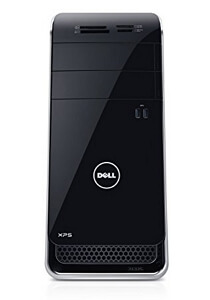
Our top pick for the best programming desktop is Dell XPS x8900. Dell brand is reliable and this computer is an ultimate powerhouse. It comes with blazing-fast 6th generation Intel i7 Processor, 24GB of RAM, and huge 2TB of HDD and an additional 256GB of SSD for lightning speed. It's just the right combination to meet up all your programming demands. With ample RAM the desktop handles serious multi-tasking with great ease.
It comes pre-installed with Windows 10 Professional and a discrete NVIDIA GeForce GTX 960 graphics with 2GB of GDDR5 memory for superior graphics. So apart from coding you can also use XPS x8900 for game development, video editing and gaming.
The machine has hybrid storage so I suggest you to install all programs and apps on Solid state drive for fast launching and use HDD to store all your files and work. Plus it has got 6 USB 3.0 ports and 4 USB 2.0 ports which is more than enough for your programming needs.
Acer Aspire is the cheapest programming desktop computer in our recommendation and gives best value for money. Being Amazon's best seller speaks for its credibility. If you are a budding programmer, computer science major or a programming student with budget-constraint then I highly recommend considering this one.
The PC has the right combination of hardware to deliver power and performance. All your coding work goes smoother with this machine as it comes with 7th generation Intel Core i5 Processor, 8GB DDR4 RAM, huge 2TB Storage and pre-loaded Windows 10 Home OS.
Besides it has integrated Intel HD 630 Graphics to handle all basic gaming and graphics. So unless you are into game development, Acer TC-780 is more than enough to handle all your programming needs.
If you don't like desktops taking up too much space then you can go for clutter-free All-in-One computers. All-in-Ones are attractive, touch screen enabled, easy to setup and need less room. HP Pavilion All-in-One Desktop is a powerful combination of latest Intel Core i7 CPU with turbo boost up to 3.6 GHz, 8 GB DDR4 SDRAM which you can expand up to 16GB and Intel HD 530 GPU for handling graphics.
If you feel 8GB Memory is not enough you can always upgrade it to 16GB at any time. And the best part is the big 23.8 inch widescreen Full HD IPS Panel display which is touch enabled. The thin almost bezel-less display makes the desktop very attractive.
It also has built-in Bluetooth 4.0 support which is the latest technology and has HP TrueVision Web Camera, Ultra Slim SuperMulti DVD Burner, wireless keyboard and mouse. Overall it's a complete package that is efficient to meet up every coding demands of a programmer.
Lenovo IdeaCentre 700 is another good pc computer for developers. It comes with the configuration suitable for heavy duty processing and gaming. It comes pre-loaded with Windows 10 OS and is powered with Skylake Intel Core i7 3.4 GHz Processor coupled with 8GB RAM and deliver smooth performance and effortless multi-tasking.
There is huge 1TB HDD storage plus additional 120GB of Solid State drive. The best part of this desktop is that Operating system is installed in SSD so literally it takes up only few seconds for booting Windows 10.
The desktop comes with a really good dedicated graphics card with 2GB video RAM. The NVIDIA GeForce GTX 960 Graphics is more than enough to run latest graphics softwares and game engines without hassle. Overall Lenovo IdeaCentre has all the power and elegance to meet up the demands of a programmer & game developer with more room for upgrades and expansion.
Alienware AUR5-12571SLV is a high-end VR Ready desktop with lightening fast performance. The machine is powered with 6th generation Intel Core i7 3.4GHz Processor teamed up with 16GB DDR4 RAM with more room for expansion up to 64GB RAM.
It comes pre-installed with Windows 10 OS and got 2TB of hard disk space to store all your files and projects. Plus there is also another 256GB SSD storage for fast loading OS and Programs.
As for GPU, Alienware AUR5 has the excellent NVIDIA GeForce GTX 1070 with 8GB GDDR5 Memory which makes it the best desktop for Virtual Reality and Game Developers. Hard-core gamers are going to have great time with this beast.
Overall it's a great pc and little expensive but worth every penny you spend. Highly suitable for Professional developers and programmers.
If you don't have patience to sit and watch your computer taking up ages to open up a file or program then do you yourself favor and get SSD. You won't regret it.
HDD drives are cheaper and you get so much of space at lower price. But the problem is they are slow. The more data you store the more slower it is. The entire process is mechanical. It has this small moving head that spins and sorts through several millions of bits of data stored in the disk every time you try to access a file, folder or program.
But SSD or Solid State Drive is super fast since it has no mechanical parts. It literally boots up a computer within seconds and loads up mega files and heavy programs at lightning speed. They are expensive but well-worth the price. Together with Powerful Processor, Good RAM and SSD your system will chew up any task you throw at it.
These days' computers happen to have hybrid storage that is with both HDD and SSD drives. I highly recommend going for this type of storage if you can afford it. By this way you can get to store all static files and Medias in HDD and install Operating system and Programs on SSDs for faster performance.
Processor: How Many Cores Do You Need?
The Processor or CPU (Central Processing Unit) is the brain of your computer and the driving force behind every task your system performs.
Your desktop/laptop performance relies on CPU. The two most important things you must consider about a processor are speed and number of cores.
Most of the latest processors are tuned out for faster performance. So if you go for Intel chipset you don't have to worry much about speed. They will be at best. But the number of cores is a different story. Most of the time number of cores is related to speedy performance. This is not entirely true. Their main purpose lies on the level of multi-tasking they accomplish.
We programmers are used to open up multiple applications, browser windows, several files and tabs during work. This increases work load on CPU. A CPU like Intel i7 with four-cores will meet up all your coding demands without trouble.
Unless you are on tight-budget I suggest you to go with i7 or i5 processor. On any case if you have to settle for Processor with two cores, just make sure it is capable of hyper threading which will be OK for multi-tasking.
How Much RAM is Optimal?
RAM is another one important factor to consider. RAM or Random Access Memory keeps tab of all opened applications, files etc and data related to them for easy access. So having a good amount of RAM is a must if you don't want a lagging pc. Just a bloated IDE and 8 to 10 Chrome tabs are enough to slow-down a computer. So I would recommend going for at least 8GB RAM - NEVER settle for anything less than that.
RAM is relatively cheap so going for 16GB or even 32GB won't hurt. This helps in case you work on GPU intensive tasks such as game development. Game engines do need more power.
Generally there is a misconception about 'More RAM' equals 'More Speed'. This is not completely true. Just keep in mind, doubling RAM won't double the speed. Having 32GB RAM with low-end processor doesn't boost up performance of a computer. At the same time a 4-core high-end processor with 16GB RAM will do wonders.
Do You Need A Graphics Card?
Gone are the times when we programmers sit and do only coding. Now everyone has to do everything. I know several developers who do designing stuffs too. For some it's a hobby, some its passion and others simply work.
A Graphics Card or GPU takes care of rendering images to screen and comes with separate video RAM for processing data into signals. Modern Processors like Intel i5, i7 has built-in integrated graphics which is efficient to some level. This type of graphics card doesn't have separate memory so they'll make use of system RAM for handling games and graphics. As a coder you can get away with this and don't need a dedicated GPU.
But if you are into desktop gaming or occasionally work with graphics softwares like Photoshop then you'll need a discrete GPU on your desktop.
As for Game Developers you MUST have a high-end Graphics card for rendering images. Just an integrated graphics won't cut it. The better your graphics card the better and smoother the rendering is. This is very important for game developers, graphics artists, gamers and video editors.
NVIDIA is the most popular graphics card with AMD cards lining next. If at all you have to choose a dedicated graphics card, I recommend you to go for NVIDIA card with at least 2GB vRAM.
What about Display & Keyboard?
Computer Display and Keyboard is what you call as comfort feature. I like large screen monitor and mechanical keyboard. Since this is what you are going to do all day as a programmer, sit and look into the monitor and type into the keyboard.
Big display is the luxury you get with Desktops. You can't expect such thing with a laptop. A wide monitor can accommodate so much screen elements in one go and you don't have to squint your eyes to read through tiny texts. A well-spaced super responsive keyboard will prevent strain on your wrist and fingers. I must say mechanical keyboards are the BEST in this context.
Over To You:
That concludes our buying guide on best desktop computers for programmers and developers. The desktops reviewed here are very good for programming and coding needs and suitable for everyone's budget. I hope now you have better understanding of what to look for and already found a great desktop for coding purpose. If you have any good suggestions please leave it in the comment section.
Computers are inevitable these days. People look at screens all day regardless of work or game. However, when you continue to look at the monitor for hours it will lead to eye strain and fatigue. Especially professionals like computer programmers, web designers, video editors and bloggers are prone to eye problems due to long hours of working on computers. Therefore, it is important to choose eye-friendly monitors to keep your eyes healthy.
Nowadays monitors are designed with eye care technology to help people with eye problems. Even if you are on tight budget, there are affordable monitors for eyes in the market. To maintain good eye-health you must be choosy with the monitor you use with your desktop pc or laptop. With a wide range of choices, it is definitely a tedious task to choose the best monitor for eyes. This buying guide gives you a good insight into eye care technology and helps you choose the right eye monitor in 2020.
Top 10 Best Monitors for Eyes in 2019-2020
Here are our top 10 best recommended monitors for good eye health.
1. ASUS PB279Q 4K Eye Care Monitor
With IPS Panel display and excellent 3840 x 2160px screen resolution, ASUS PB279Q is one of the best monitor for eyes. This 27-inch monitor comes with a good ergonomic design and can be used in portrait mode as well. It is built with ASUS Eye Care Technology and supports features like Flicker Free display and Blue Light Filter thus preventing eye strain and fatigue.
And the Smart Dynamic Backlight Adjustment ensures a smooth and eye-friendly user experience. It comes with various height level adjustments and different on-screen filter settings for eye protection. Picture-in-Picture and Picture-by-Picture functions are available and four 4K sources can be viewed on the monitor.
In addition, the ASUS PB279Q packs several types of ports, including a Display Port 1.2, a Mini Display Port and four HDMI 1.4 / MHL ports. Taking into account all of its powerful features ASUS PB279Q is one of the best monitors to avoid eye fatigue out there.
BenQ GW2765HT is another good eye monitor with a great ergonomic design. The monitor is 27" in size with a resolution of 2560 x 1440 IPS display. The WQHD panel provides 109 ppi making it suitable for watching movies and games.
For added viewing comfort, it is equipped with an eye-care technology called "Revolution Eyes". This includes features like Zero Flicker and Low Blue Light to prevent eye fatigue.
Being a high-end monitor, BenQ GW2765HT offers a wide range of options to choose from, such as standard, sRGB, movie, echo, game, photo and reading mode. And choosing the Eco mode will result in less energy consumption which is another good thing. It comes with many ports such as VGA, HDMI, DVI-D, and display port. Overall BenQ GW2765HT is a great monitor to consider buying.
ASUS MX27AQ is another great choice for eye care monitor with thin and frameless design. The monitor is 27" in size and has good ergonomics with various height adjustments. It comes with 2560 x 1440 px screen resolution and the AH-IPS panel has wide viewing angles of 178 degrees for a minimum color shifting.
The monitor features ASUS Eye Care Technology and comes with Flicker Free display and Blue Light Filtering to reduce eye strain and fatigue. In addition, you can choose between different levels of brightness and blue light with the help of the OSD menu which is suitable for long hours of work.
Another good thing about ASUS MX27AQ is its built-in speakers. With Band & Olufsen ICEpower the audio quality is good for entertainment and games. There are 2 HDMI ports, HML ports and a display port on the monitor. Overall ASUS MX27AQ could be another good option to avoid strain on the eyes.
ASUS MX259H comes with a 25-inch LED display with 1920 x 1080 px screen resolution. It is built ultra thin and without frame and has an incredible viewing angle of 178 degrees wide for stunning visuals. With ASUS SonicMaster technology, the built-in speakers have a very good sound quality.
It is one of the best monitors for eyes since it is designed with ASUS eye care technology and features TUV certified flicker-free and blue light filter display for less eye strain.
The monitor controls are very sensitive. Plus the audio jack is on the rear side so you have to turn it around to connect the jack which is a slight discomfort.
Besides ASUS MX259H comes with a good ergonomic design and allows you to adjust height level, screen brightness, sharpness etc. As for connectivity, it supports dual VGA and HDMI ports and let you connect other devices to it.
BenQ BL2711U is a 27-inch monitor with IPS Panel and 4K HD resolution display. It has a dynamic contrast ratio of 20,000,000: 1 for amazing color accuracy. The screen colors are rendered professionally with 100% sRGB and Rec 709 color space.
The monitor comes with Zero Flicker and Low Blue Light technology to avoid eye fatigue and strain. The display is great especially for designers and graphic artists, as it offers CAD/CAM mode for enhanced color contrast in 3D color lines. There is also this animation mode that delivers excellent user experience for animators and designers.
BenQ BL2711U is highly ergonomic as you can adjust height and rotation for better viewing angle. Plus the availability of PIP and PBP makes it even better. And it sports various ports like HDMI, Display & DVI-D ports for connectivity.
BenQ EW2750ZL is a thin bezel monitor with a 27-inch wide screen and 1920 x 1080px display resolution. Its base is constructed with the shiny plastic slab with a light metal bracket and looks attractive.
It is designed with eye care features such as TUV Rheinland Certified Flicker-free display and Low Blue Light filtering and regarded as the best eye monitor. Thus, even with a high level of brightness, it reduces blinking and prevents eye fatigue.
There are four preset modes for low blue light and let you set it up for multimedia, reading, working or surfing the Internet. The display panel is especially good for multimedia.
The only downside is OSD navigation menu is a bit inconvenient. Otherwise BenQ EW2750ZL is lightweight, attractive with solid color contrast and reproduction.
ASUS VX24AH is a 23.8" monitor with frameless bezel screen. It features IPS panel display for excellent color contrast with 2560 x 1440 px resolution. The anti-glare screen also makes it easy on the eyes while working. This is a must have feature if you have light sensitive eyes.
To prevent eye strain and fatigue it supports Asus Eye-care features like zero flicker and blue light filter. Plus the display has nice viewing angles up to 178 degrees as well.
ASUS VX24AH includes a VGA port and two HDMI ports with MHL support. Being bezel-less and light the monitor will be aptly suitable if you plan to go with multi monitor set up. Overall VX24AH is a decent eye monitor on budget which is best for pc gaming and everyday use.
Dell UltraSharp U2412M is a 24-inch monitor with excellent color rendering and wide angle viewing. The screen has a resolution of 1920 x 1200 pixels and comes with amazing features for long hours of work.
The monitor has robust built but at the same time looks slim and elegant. It offers easy-to-navigate OSD menu for an excellent user experience. There are as many connectivity ports on the monitor such as five USB ports, VGA, Display Port and DVI so you can connect it to other devices.
But there is no HDMI port which is little disappointing. Apart from that, Dell UltraSharp U2412M comes with so many good features including excellent color contrast and energy efficient.
ViewSonic VA2855SMH offers 28-inch screen with Full HD display supporting 1080p resolution. The Super Clear Pro imaging technology offers incredible wide viewing angles. And the color rendering is pretty good with true 8-bit color and a static contrast ratio of 3000: 1.
The monitor is equipped with eye care features such as blue light filtering and flicker less display to reduce eye strain. It also comes with various display modes for preferred color choice such as image, movie, gaming, browsing etc.
It comes with built-in dual-speakers. Although the speakers are small, their audio quality is good and optimal for entertainment. The only downside is the lack of USB port on ViewSonic VA2855SMH.
10. ASUS ROG SWIFT PG279Q 27" Eye Care Gaming Monitor
ASUS ROG SWIFT PG279Q is a 27-inch monitor with support for 2560 x 1440 px resolution. The monitor is built with IPS LCD panel and offers 178 degrees of wide viewing angles for minimal distortion and color change. It has a very fast response time and supports G-Sync and FreeSync adaptive refresh rates.
Built with ASUS eye care technology, the monitor supports low blue light filter and flicker free display for less eye fatigue. The display is smooth, eye-friendly and offers a rich multimedia experience.
ASUS ROG SWIFT PG279Q is very ergonomic and can be adjusted tilt, height, swivel and pivot for comfortable viewing. The monitor comes with two usb ports, a display port and hdmi ports. Although it is a bit pricey, you get what you pay for. This is an amazing eye monitor for the best gaming experience.
In order to choose the right eye monitor, you must clearly understand about eye care technology and its positive impact on maintaining good eye health. Features like blue light filter, zero-flicker, refresh rate, anti-glare screen are important for an eye-friendly monitor. And there are other general factors like resolution, ergonomics to be considered as well. So here we present the detailed buying guide to help you choose the best monitor to prevent eye strain.
What are Eye Care Technologies?
Working extended period of time on computer can cause eye fatigue. This is because you look at the screen from a very close distance which obviously leads to Computer Vision Syndrome (CVS). So the solution to this problem is to work on monitors that are easy on the eyes. And brands like ASUS, BenQ, Viewsonic etc. have developed some technologies for designing eye-friendly monitors which include features like low blue-light, flicker free, anti-glare, ergonomics etc.
1. Blue Light Filter
The first and foremost important feature to look for in an eye-friendly monitor is the low blue light filter. Blue light is the harmful blue-violet radiation from the monitor and can cause eye damage, strains, headaches, and sleeping disorders. Children are most prone to eye damage than adults due to this blue light. If you are serious about your eye health then you must definitely choose a monitor designed with low-blue light technology. And the monitors we have recommended above have this feature and provides easy to access OCD menu to choose from various levels of blue light to use throughout the day.
2. Flicker-Free
The second important eye technology to look for in a monitor is flicker-free display. In general, flickering is the state of the LED backlight rapid on/off cycle and this is how the screen maintains brightness level. When you work on low-brightness flicker can be noticed. When the display flickers, the pupil of the human eye expands and contrasts according to the frequent change in brightness. In case of prolonged use, flickering can cause eye strain, fatigue and headache. So how could you avoid this problem? The monitor with dynamic backlighting will be gentle on the eyes and will give you a better working experience. So pay attention to the "Flicker-free" screen when selecting the monitor.
3. Anti-Glare/Matte Display
A monitor with anti-glare or matte display will dissipate reflected light, thus reducing eye strain and fatigue. Smooth, glossy screen reflects light directly backwards and causes unwanted glare. They are distracting and put strain on your eyes. So make sure your eye monitor comes with anti-glare panel that you will definitely like.
4. Ergonomic Build
Ergonomics is important. Monitor with good ergonomic design will be convenient to work for long hours. It lets you adjust the height level according to your preferences. Viewing the monitor from the wrong angle or height is the main cause for eye problems. So go for ergonomically designed monitor when you shop for the best eye monitor.
Other Factors to Look for in Eye-Monitor
Monitor Size is Important
Monitor size depends purely on your nature of work and comfort level. Basically they come in three different sizes, small (17 - 18"), standard (19 - 24") and large (25 - 30") screen. Monitors with too wide screen may be inconvenient for some. In such case going for multi-monitor setup would be better. Instead of one big monitor you can get two small monitor and do the job faster.
If you are a graphic designer or a gamer, then a large screen monitor would be more convenient to fit so many windows at a time. On the other hand if you are copywriter or video editor, then you can use double or triple monitor setup where you can open up a reference web page on one screen and work with the application on the other.
Screen Resolution
The resolution of the screen has a direct impact on eye health. The popular screen resolutions are 1080p, 1440p, and 4K (2160p) monitor. Too high or too low resolution is not good for eye health. Therefore, in general, the text and icons should be large enough for a better view. For standard size monitor ranging between 22 to 24 inches, 1080p resolution is the best and gives you great picture quality. Anything above 24", it is better to choose 1440p or 4k resolution.
Display Panel
Another important factor to pay attention is the type of display panel a monitor uses. There are three main types of display panels available on the market today and are IPS, VA and TN panels. Of the three, the TN Panel (Twisted Nematic) is the cheapest and has a fast response time and a high refresh rate. This type of panel is used a lot in game monitors, but they are not best for the eyes. Second, VA (Vertical Alignment) Panels are a good mid-level option and are considered to have decent color accuracy, brightness and contrast ratio. On the other hand the In-Plane Switching (IPS) Panel has the eye-friendly display and has better viewing angles and color accuracy. Although little expensive, they are very suitable for intensive graphics work. Therefore it is highly recommended to go for a monitor with the IPS panel.
Brightness and Contrast Ratio
Brightness - Too much brightness may lead to visual strain. Most high-end monitors have a brightness level ranging between 300 and 350 cd/m2. But a brightness of 250 cd/m2 is considered to be good for eye health.
Contrast ratio - It is the difference between the luminance of the brightest white and the darkest black that a monitor can produce. The higher the contrast ratio, the better the color accuracy.
Viewing Angle
A monitor with a larger viewing angle let you see from the sides of a screen without a change in color and brightness level. Generally monitors with viewing angle above 170 degrees will be easy on the eyes.
Refresh Rate
Monitors with 60Hz refresh rate are more common these days and means that the display is capable of producing 60 frames per second. It is true that low refresh rate monitors may cause eye problem. But as for LCD monitors, 60Hz refresh rate is more than enough to avoid eye fatigue. You don't need to go beyond that, but it doesn't hurt to go with higher refresh rate monitors since they are not expensive. Monitors with a 120Hz or 144Hz refresh rate can be much smoother and offer a very good gaming experience.
Response Time
It defines how fast a monitor display transition takes place and is measured in mille seconds. In general the monitor with lower response time is good.
I/O Ports
Often a feature overlooked at first but people regret later. Make sure your monitor has a sufficient number of I/O Ports and has convenient access to it. There must be at least two USB ports, a HDMI port and a Display port on a monitor. If you plan to connect monitor to the laptop, then verify what kind of port the laptop has. Most laptops come with HDMI port. Therefore, the monitor you choose must also have a compatible compatible port on it to connect the device.
Over to You
We hope this guide has helped you get an idea of what to look for in the best eye monitor. As a professional I work at the computer all day and know the importance of maintaining good eye health. So when you shop for a monitor, do yourself favor and buy an eye-friendly monitor.